Real Estate Turnkey App
WorkDarwin Homes · Property operations
Real Estate Turnkey app
One app for the whole Turn, from a resident moving out to the home being ready to rent
Project snapshot
My contribution
Role
Designed Turnkey end to end, from discovery to the hand-off to engineering
Focus
User interviews and synthesis, the future-state workshop, prototype testing, the app’s user flow, high-fidelity web and iPad designs
With
A product manager • Darwin’s design team, on the page structure and critiques • engineering • the Turns team: coordinators, auditors, dispatchers, area managers
Constraint
Eight weeks, and a Turn spread across Darwin’s platform, Fotonotes, a shared inbox, Airtable and the Vendor Portal
Project details
- Company
- Darwin Homes
- Product area
- Property operations · Turns
- Discipline
- Product design · Web and iPad
- Timeline
- January → March 2022
- Status
- Designs handed off to engineering, March 2022
- Target
- Under 21 days to Rent Ready for 85% of Turns, against two months or more
- Delivered
- Web + iPad high-fidelity designs handed to engineering in eight weeks
00 Overview
At Darwin Homes, a Turn is everything between one resident moving out and the home being ready to rent again: inspections, a scope of work, vendor estimates, the owner’s approval and the repairs. Turns were taking two months or more, against an industry norm of under 21 days.
Over eight weeks in early 2022, with a product manager and Darwin’s design team, I designed Turnkey, an app to run the whole Turn in one place: from interviews and flows to a prototype tested with the people who run Turns, and high-fidelity designs for the web and the field team’s iPads.
01 Context
Every empty day costs rent
A home that sits empty between residents earns its owner nothing. Turnkey’s job was to make the Turn as fast as it could be.
A Turn succeeds when every repair is scoped, the vendor and the owner agree on a fair price for the work, and the home goes back up for rent. At Darwin, each stage belonged to a different person, and the Turn ran across separate platforms, inboxes and spreadsheets.
85%of Turns finished within the SLA’s time to completion, with units Rent Ready in under 21 daysThe goal set for the project
- StartResident vacates the unit
- 01Move Out Inspectionof the unit
- 02Scope of Workcreated from the inspection
- 03Work orderssent to vendors for estimates
- 04Owner approvalof the estimate
- 05Vendor workthe vendor completes it
- 06Rent Ready Inspection
- DoneUnit is Rent Ready
02 Defining a design process
Time for every stage
With the product manager, I planned eight weeks so that discovery, ideation and validation each had real time before high fidelity, ending with delivery to engineering on March 8.
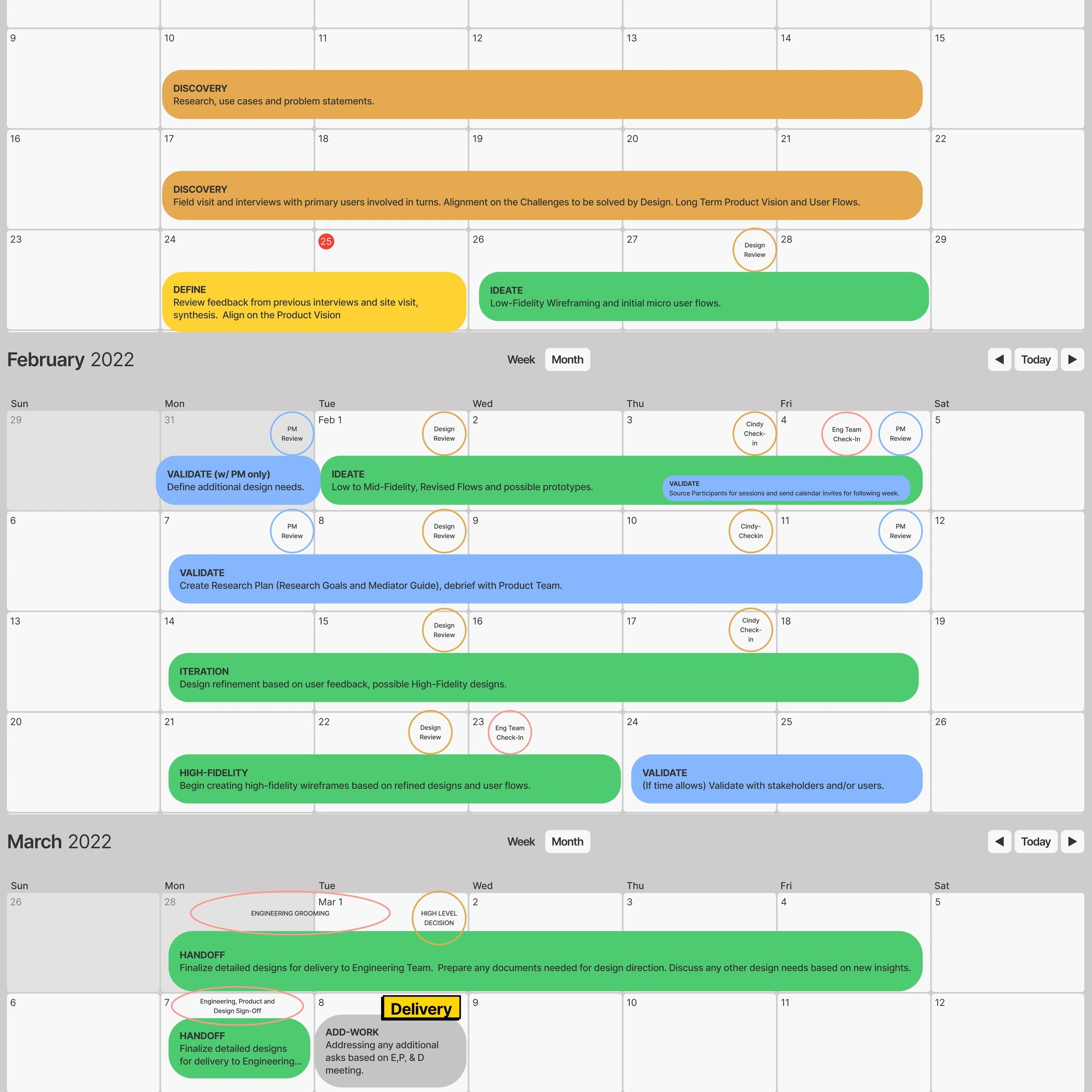
Discovery took the first two weeks: research, use cases, a field visit and interviews. Then a short definition sprint, low-fidelity ideation, a research plan and test sessions in February, iteration into high fidelity, and hand-off in the first week of March, with design reviews, PM reviews and engineering check-ins all the way through.
03 Discovery
Many tools, little visibility
A Turn moved through Darwin’s own platform, an inspection app, a shared inbox and Airtable, none of them connected. The cost was poor visibility, hard coordination and manual work that invited errors.
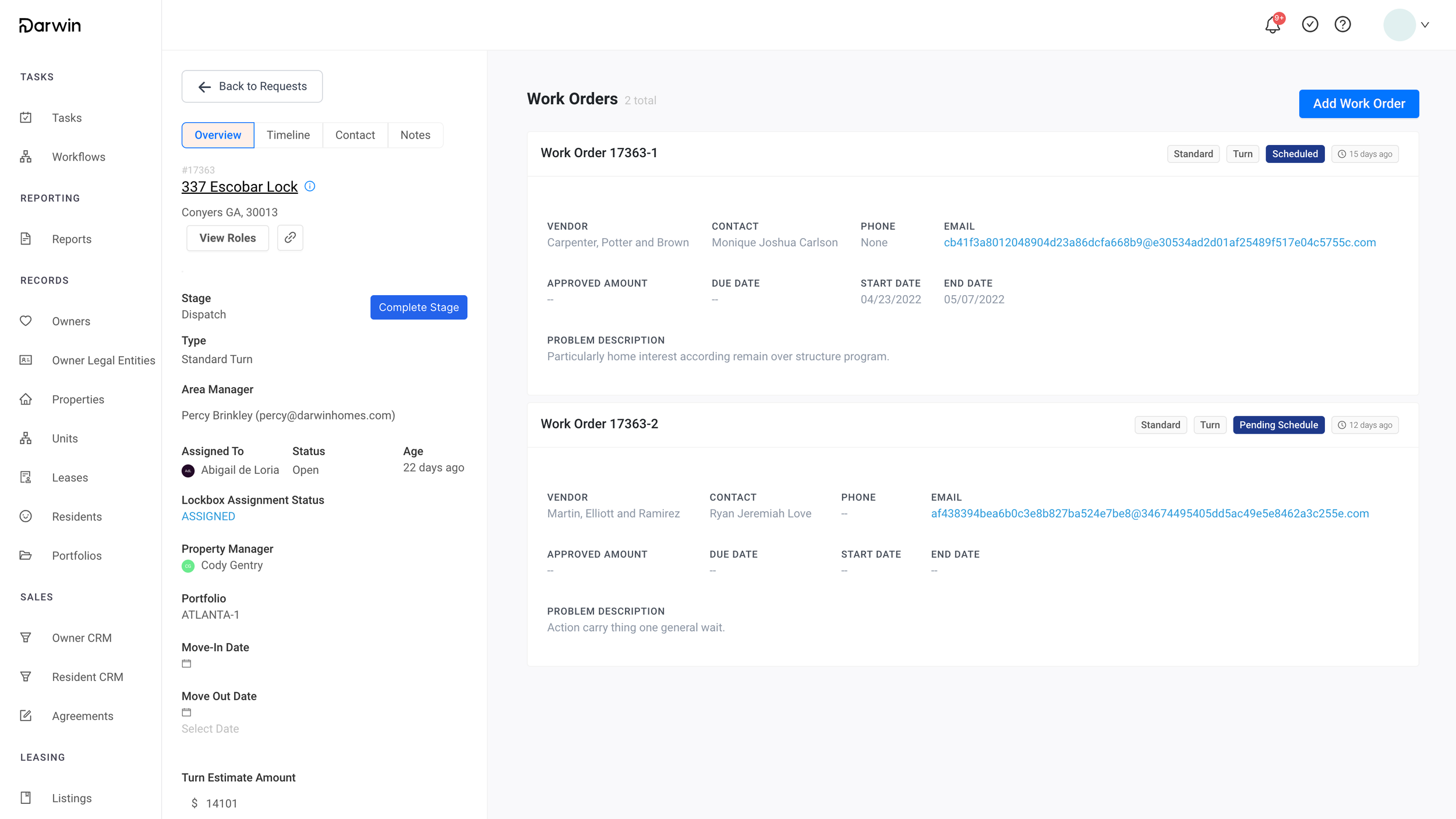
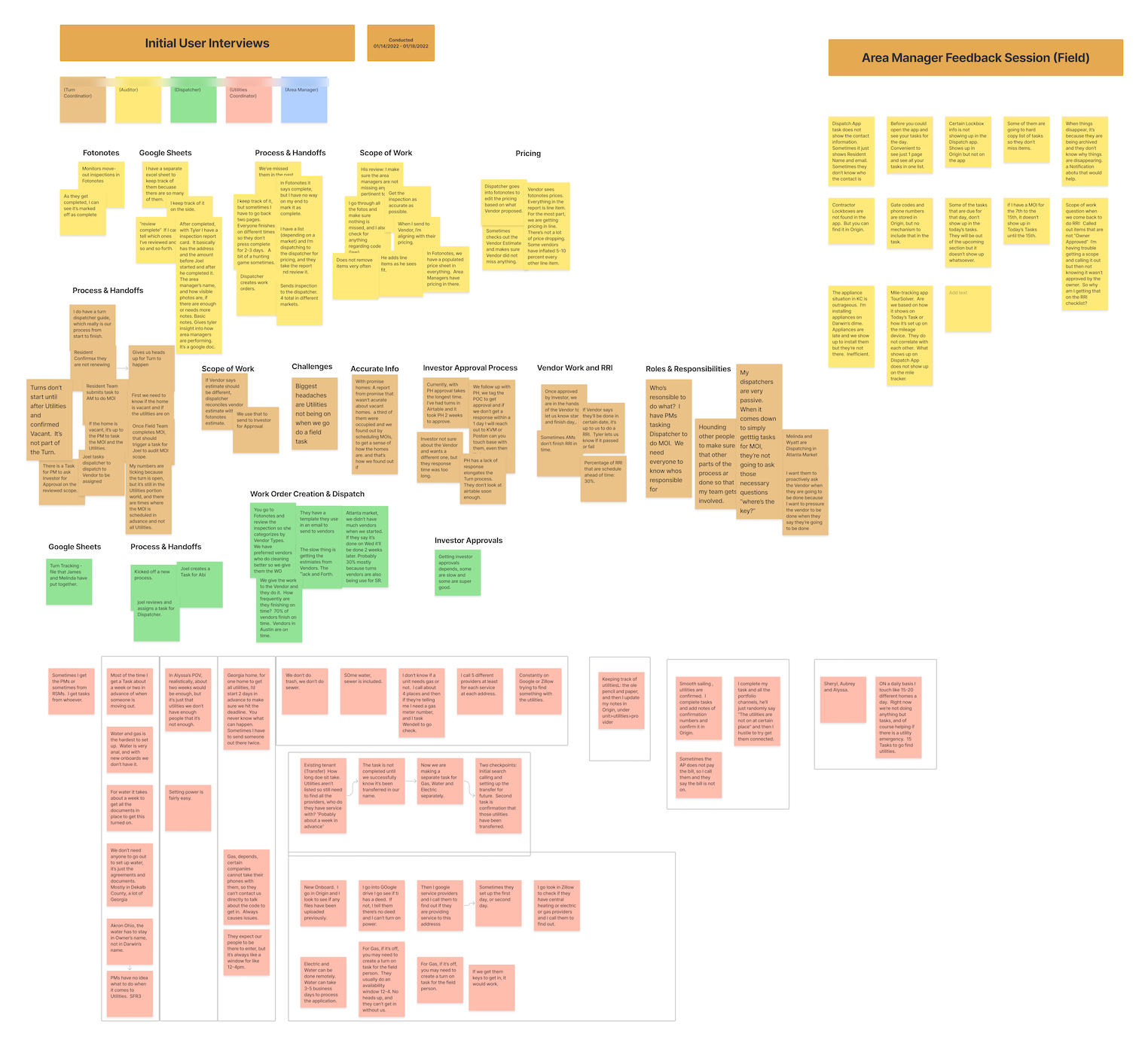
To learn what each person needed from the process, I interviewed five of the people who ran Turns: a Turn Coordinator, an Auditor, a Dispatcher, a Utilities Coordinator and an Area Manager. A feedback session with Area Managers in the field followed.
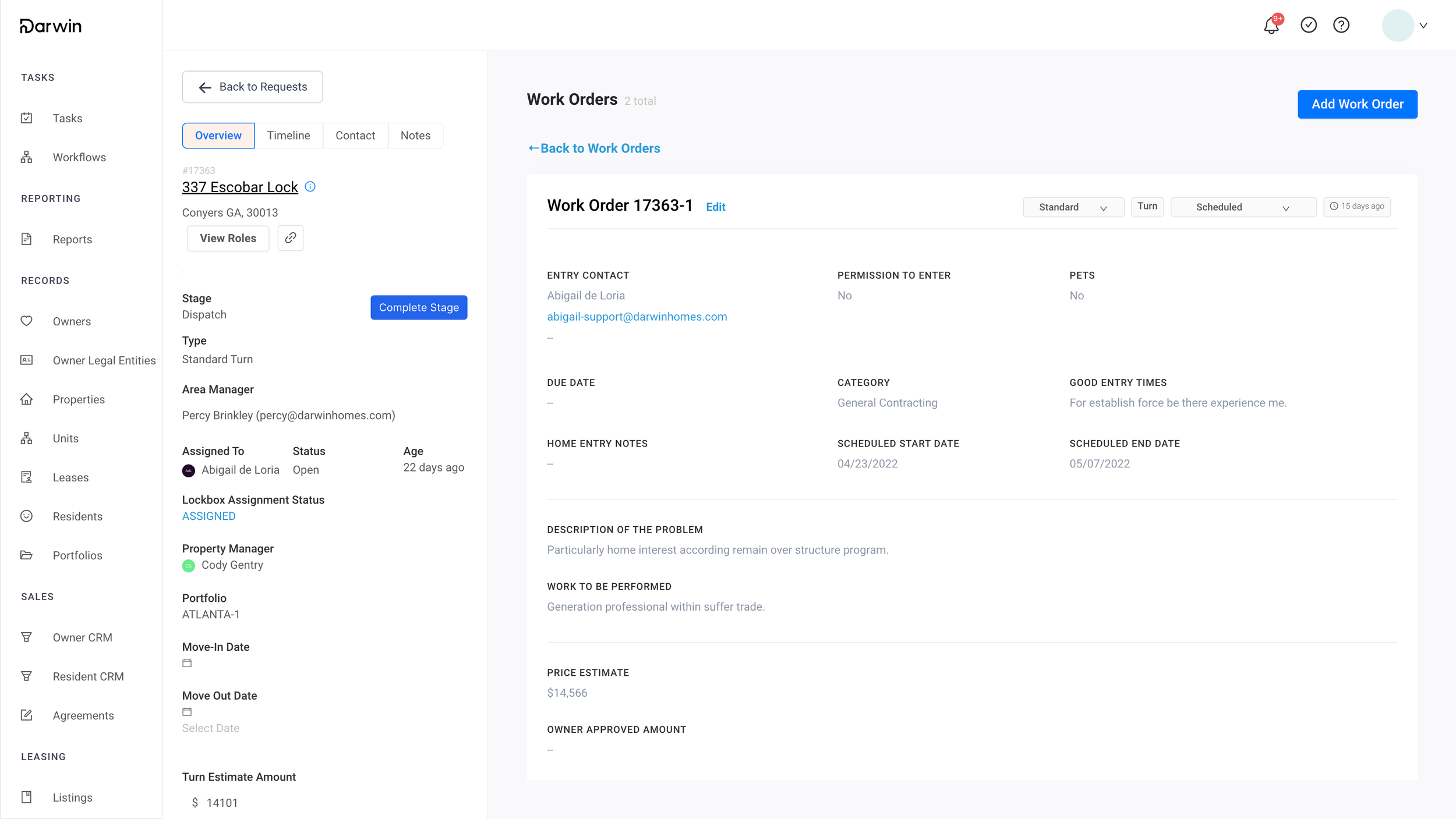
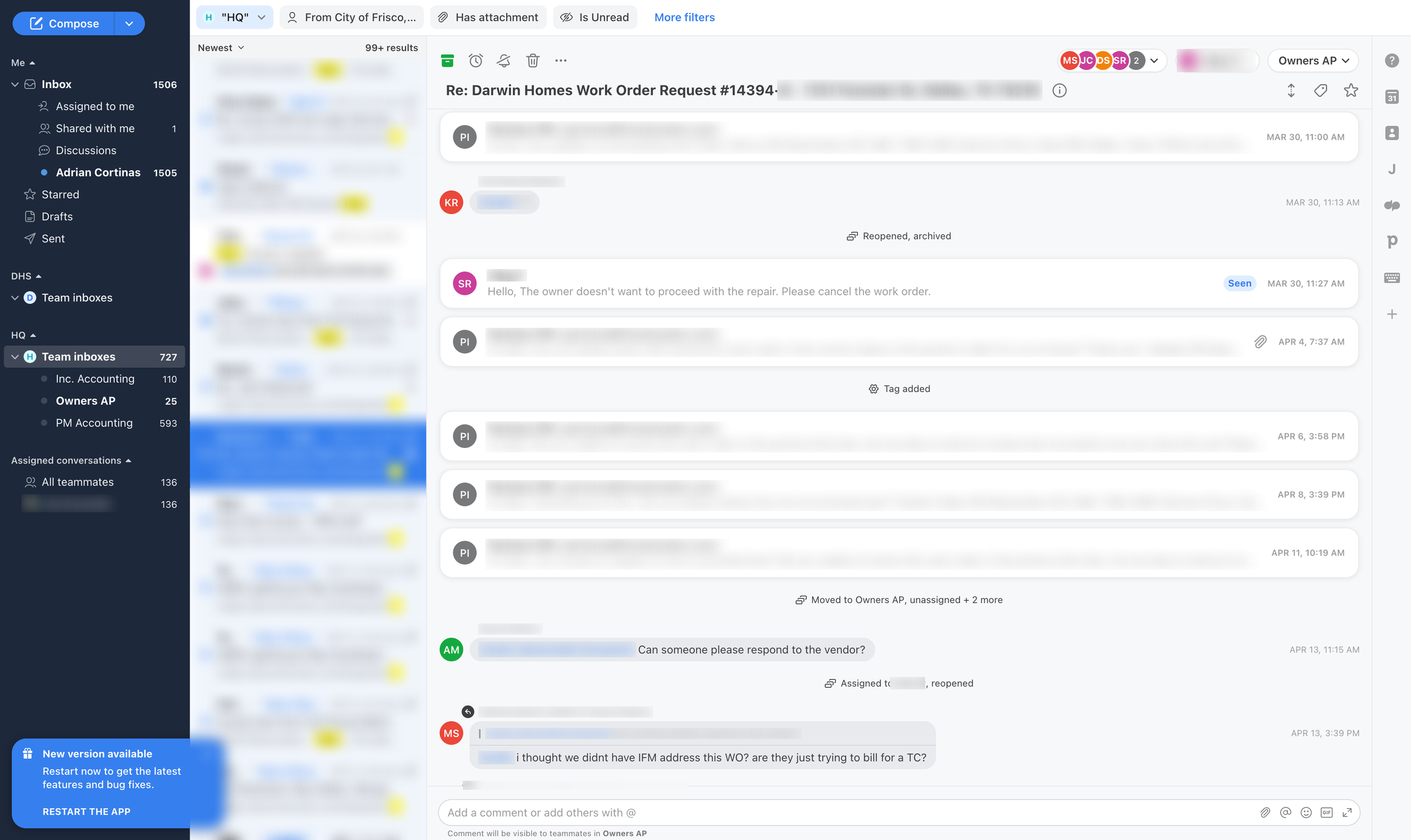
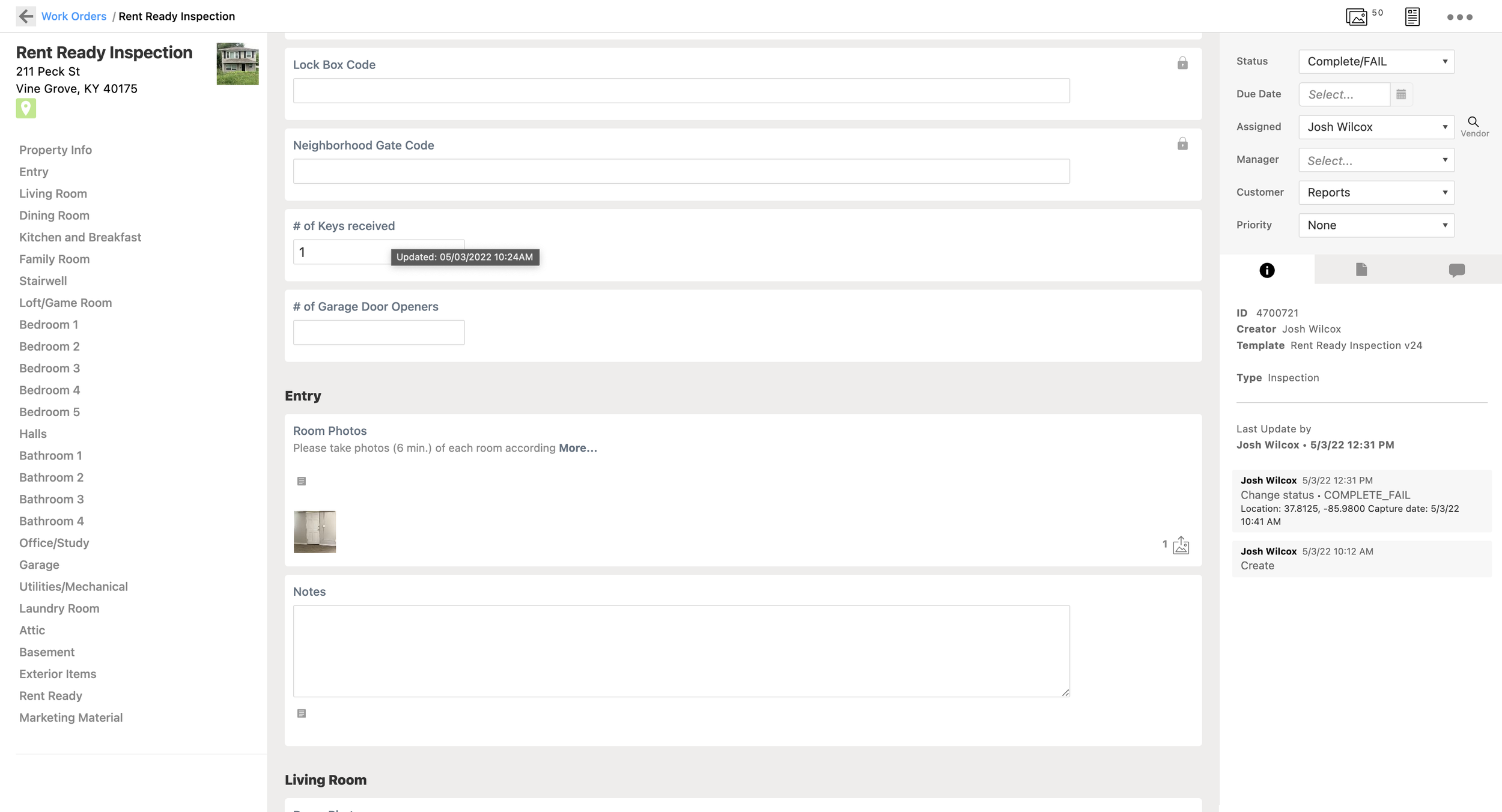
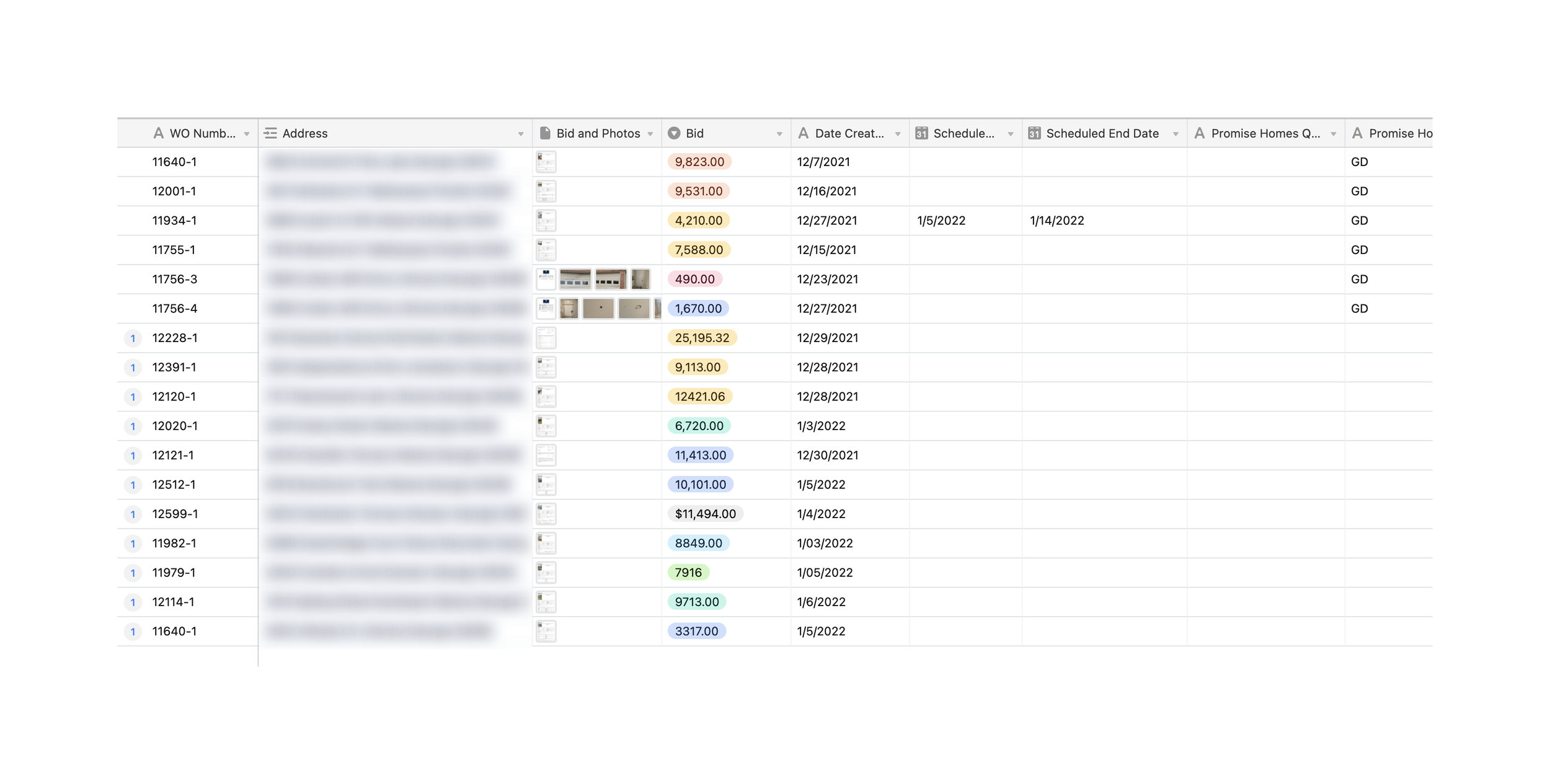
The interviews kept returning to the same blockers: Turns tracked in personal spreadsheets, utilities not on when a field task arrived, prices edited by hand between tools, investor approvals that stalled, and no shared answer to who was responsible for what.
04 Problem definition & potential solutions
Mapping the ideal Turn
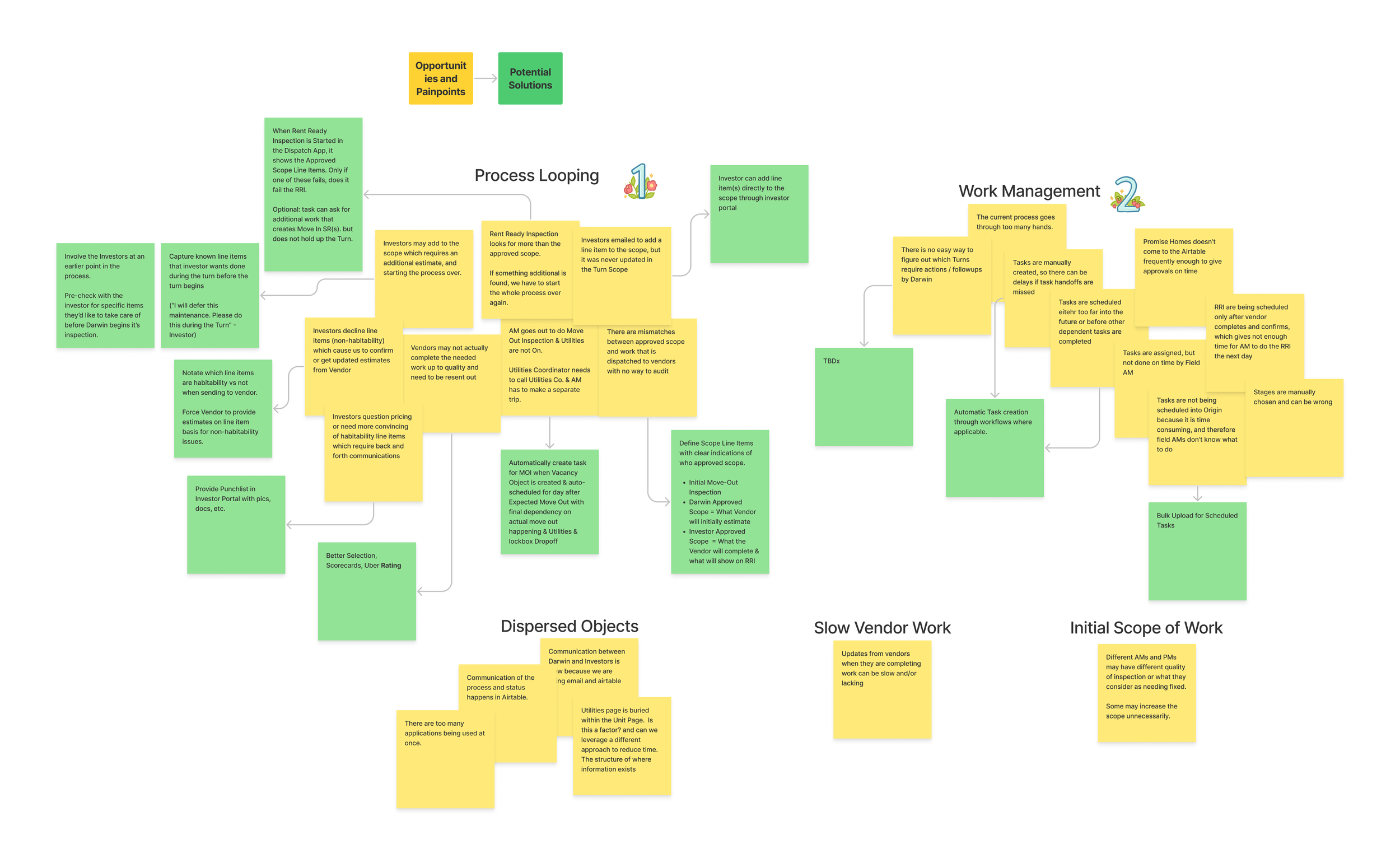
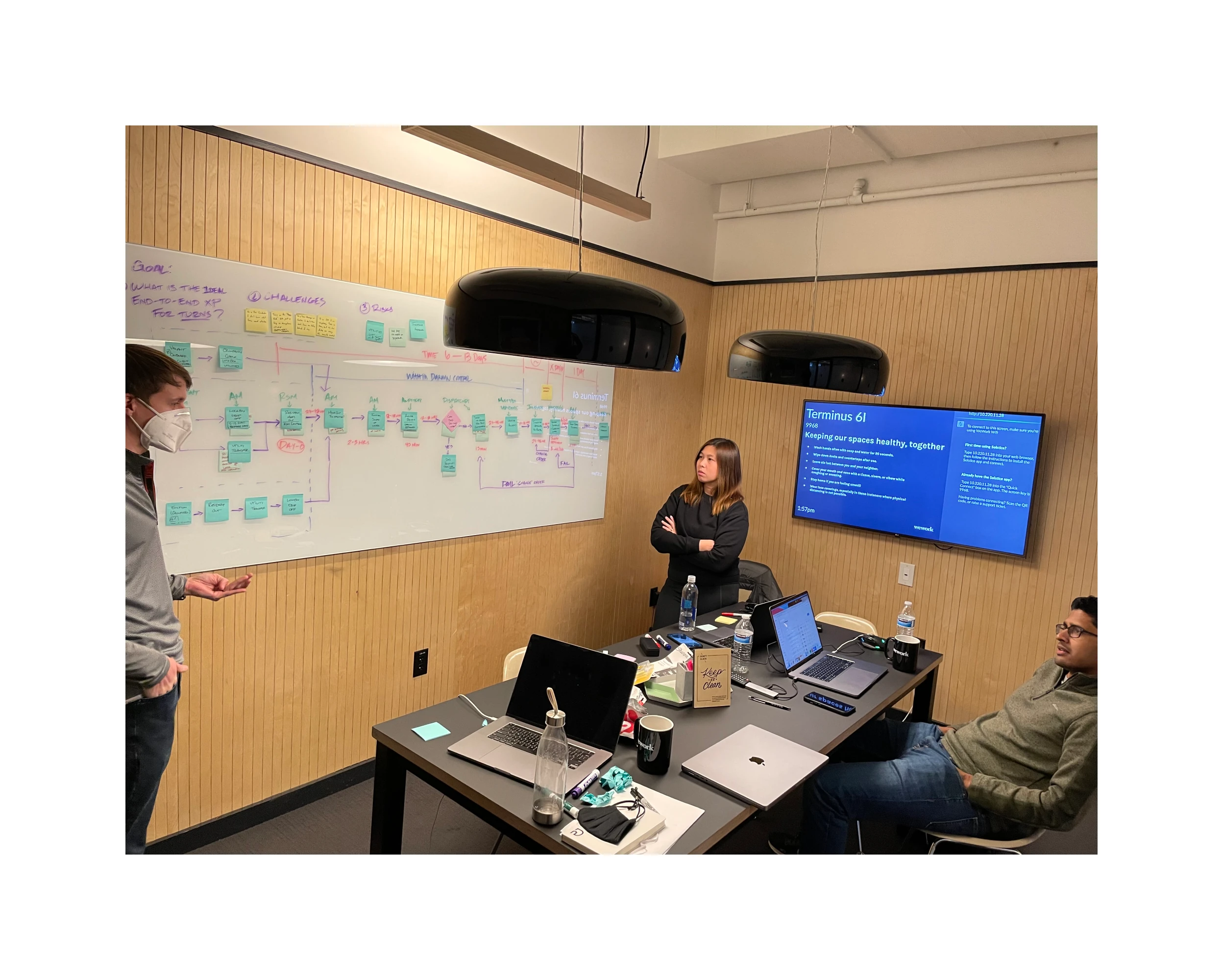
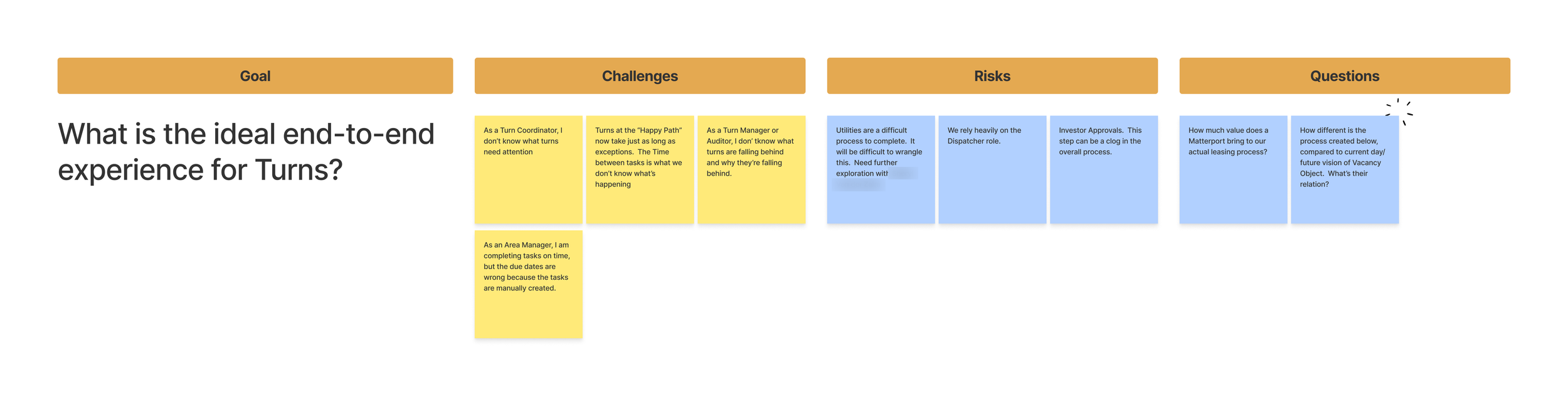
From the interviews we named the problems to solve and mapped the Turn as it ran. Then I organized a workshop where the team defined the ideal end-to-end Turn and a long-term vision for it.
The Turn as it ran
We first mapped the current state as a reference point: every step of a Turn, who did it and where. One Turn crossed more than ten pages, apps and inboxes; an investor’s questions sent it back for new estimates; and the National Director of Turns kept everyone updated through Airtable.
Throughout: the National Director of Turns shares updates on the whole process in Airtable
- The unit gives notice of a vacancy Resident Services Manager (Lease page) leads to Utilities scheduled to turn on after move-out Utilities Coordinator
- The unit gives notice of a vacancy Resident Services Manager (Lease page) leads to Lockbox with keys dropped off Field Area Manager
- Utilities scheduled to turn on after move-out Utilities Coordinator (Utilities page · utility site) leads to Unit confirmed vacant Resident Services Manager
- Lockbox with keys dropped off Field Area Manager (Dispatch app) leads to Unit confirmed vacant Resident Services Manager
- Unit confirmed vacant Resident Services Manager (Lease page) leads to Utilities transferred and turned on Utilities Coordinator, with the utility company
- Utilities transferred and turned on Utilities Coordinator, with the utility company (Utility company site) leads to Move Out Inspection Field Area Manager
- Move Out Inspection Field Area Manager (Fotonotes · Dispatch app) leads to Scope reviewed internally, approved or edited Turn Scope Reviewer
- Scope reviewed internally, approved or edited Turn Scope Reviewer (Fotonotes) — Reject — Move Out Inspection Field Area Manager
- Scope reviewed internally, approved or edited Turn Scope Reviewer (Fotonotes) leads to Sent to vendors for estimates Turn Dispatcher
- Scope reviewed internally, approved or edited Turn Scope Reviewer (Fotonotes) — Ideally — Sent to the Property Manager for edits and additions Ideally; it doesn’t happen today
- Sent to the Property Manager for edits and additions Ideally; it doesn’t happen today leads to Sent to vendors for estimates Turn Dispatcher
- Sent to vendors for estimates Turn Dispatcher (Turn Request · Vendor Portal) leads to Estimate reviewed and approved internally Turn Estimate Approver
- Estimate reviewed and approved internally Turn Estimate Approver (Turn Request) leads to Sent to the investor for approval Property Manager
- Sent to the investor for approval Property Manager (Airtable · email) leads to The investor asks why Investor
- Sent to the investor for approval Property Manager (Airtable · email) leads to Does the investor approve?
- Sent to the investor for approval Property Manager (Airtable · email) — “…let’s add it to this turn…” — Sent to vendors for estimates Turn Dispatcher
- The investor asks why Investor (Airtable · email) leads to Does the investor approve?
- Does the investor approve? — No: add or subtract line items — Sent to vendors for estimates Turn Dispatcher
- Does the investor approve? — Yes — Is the investor institutional?
- Is the investor institutional? — Yes — Vendor dispatched Turn Dispatcher
- Is the investor institutional? — No — A contribution is requested Property Manager
- A contribution is requested Property Manager (Ledger: create transaction) leads to The investor approves the contribution Investor
- The investor approves the contribution Investor (Investor Portal) leads to Vendor dispatched Turn Dispatcher
- Vendor dispatched Turn Dispatcher (Turn Request) leads to Vendor completes the work in the approved scope Vendor
- Vendor completes the work in the approved scope Vendor (Vendor Portal) leads to Rent Ready Inspection Field Area Manager
- Rent Ready Inspection Field Area Manager (Fotonotes · Dispatch app) — A line item fails the inspection — Move Out Inspection Field Area Manager
- Rent Ready Inspection Field Area Manager (Fotonotes · Dispatch app) leads to End of the Turn
- End of the Turn leads to After the Turn Unit listed → leased → Move-In Inspection
The ideal Turn
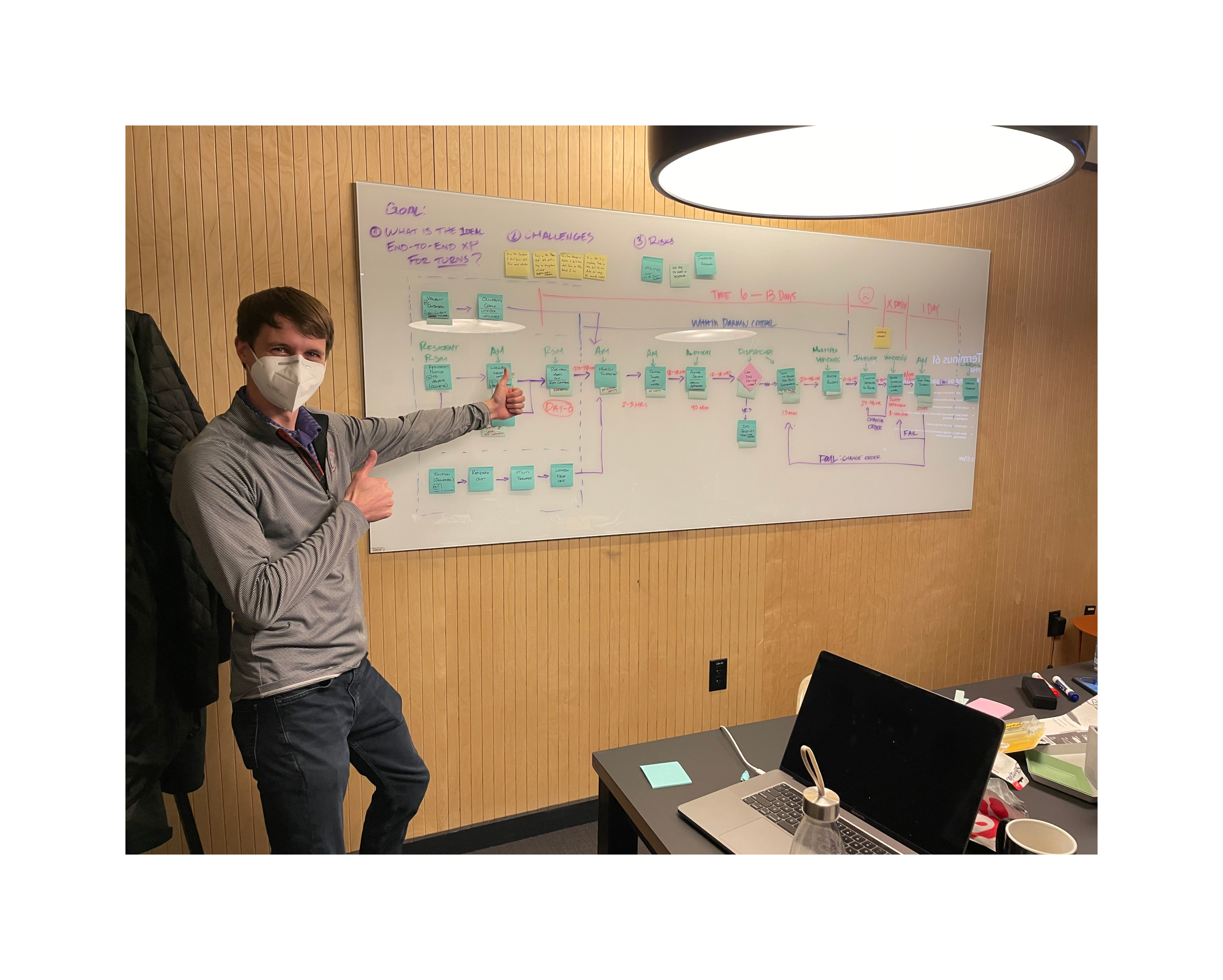
In the workshop we asked what the ideal end-to-end Turn would be. Turns involve many people with different motivations, so we mapped each person’s journey and how the journeys fit together, looking for design opportunities and for the needs and pain points behind them.
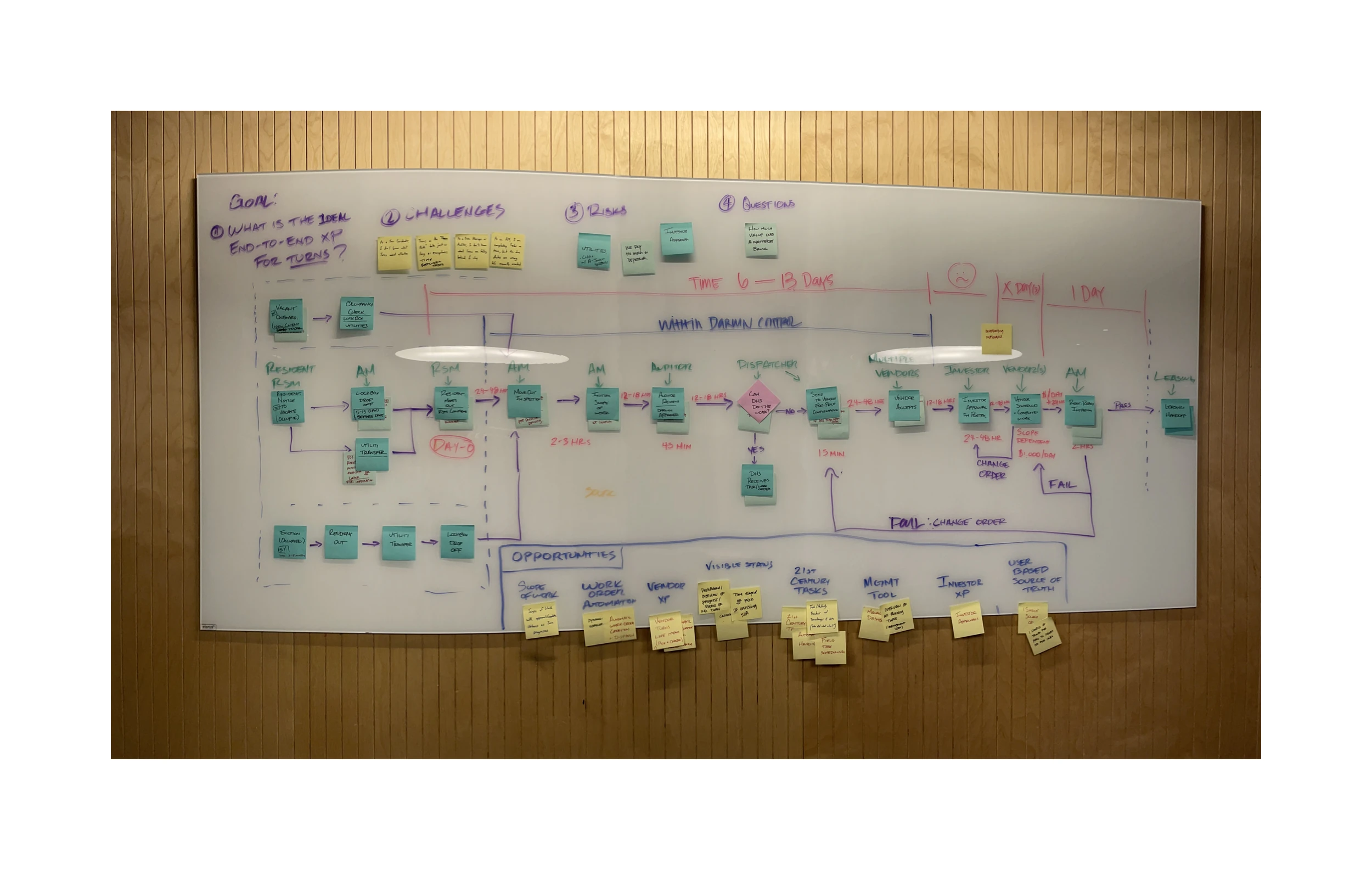
Vacant onboard · ~25% of Turns
Notice to vacate · occupied, ~70% · current priority
Eviction · occupied, <5% of Turns
6 (min) to 13 (max) days
Time: ?
$1,000/day
1 day
The Turn
- New property onboarded to the Darwin ecosystem leads to Occupancy check, lockbox drop-off, utilities confirmed
- Occupancy check, lockbox drop-off, utilities confirmed leads to Move Out Inspection: initial Scope of Work Area Manager
- Resident confirms the move-out date: notice to vacate Resident and RSM · typically 30 days before leads to Lockbox drop-off Area Manager · 5–15 days before move-out
- Resident confirms the move-out date: notice to vacate Resident and RSM · typically 30 days before leads to Utility transfer Utilities Coordinator · once the date is confirmed
- Lockbox drop-off Area Manager · 5–15 days before move-out leads to Resident move-out confirmed RSM
- Utility transfer Utilities Coordinator · once the date is confirmed leads to Resident move-out confirmed RSM
- Resident move-out confirmed RSM (Day 0) — 24–48 hrs — Move Out Inspection: initial Scope of Work Area Manager
- Eviction process A 2–5 month process leads to Resident is removed
- Resident is removed leads to Utility transfer
- Utility transfer leads to Lockbox drop-off
- Lockbox drop-off leads to Move Out Inspection: initial Scope of Work Area Manager
- Move Out Inspection: initial Scope of Work Area Manager (2–3 hrs) — 12–18 hrs — Auditor reviews the initial Scope of Work Auditor · filters it to what Darwin accepts
- Auditor reviews the initial Scope of Work Auditor · filters it to what Darwin accepts (45 min) — 12–18 hrs — Can DHS do the work? Dispatcher
- Can DHS do the work? Dispatcher — Yes — DHS receives the task or work order
- Can DHS do the work? Dispatcher — No — Sent to a vendor for price confirmation Dispatcher
- Sent to a vendor for price confirmation Dispatcher (15 min) — 24–48 hrs — Vendor accepts Vendor or vendors
- Vendor accepts Vendor or vendors — 12–18 hrs — Investor approval in the portal Investor
- Investor approval in the portal Investor (24–48 hrs) — 12–18 hrs — Vendor schedules and completes the work Vendor or vendors
- Vendor schedules and completes the work Vendor or vendors (Scope-dependent · $1,000/day) leads to Rent Ready Inspection Area Manager
- Rent Ready Inspection Area Manager (2 hrs) — Pass — Leasing handoff
- Rent Ready Inspection Area Manager (2 hrs) — Fails: the vendor’s work is incomplete — Vendor schedules and completes the work Vendor or vendors
- Vendor schedules and completes the work Vendor or vendors (Scope-dependent · $1,000/day) — Change order — Investor approval in the portal Investor
- Vendor schedules and completes the work Vendor or vendors (Scope-dependent · $1,000/day) — Fails because of a change order — Sent to a vendor for price confirmation Dispatcher
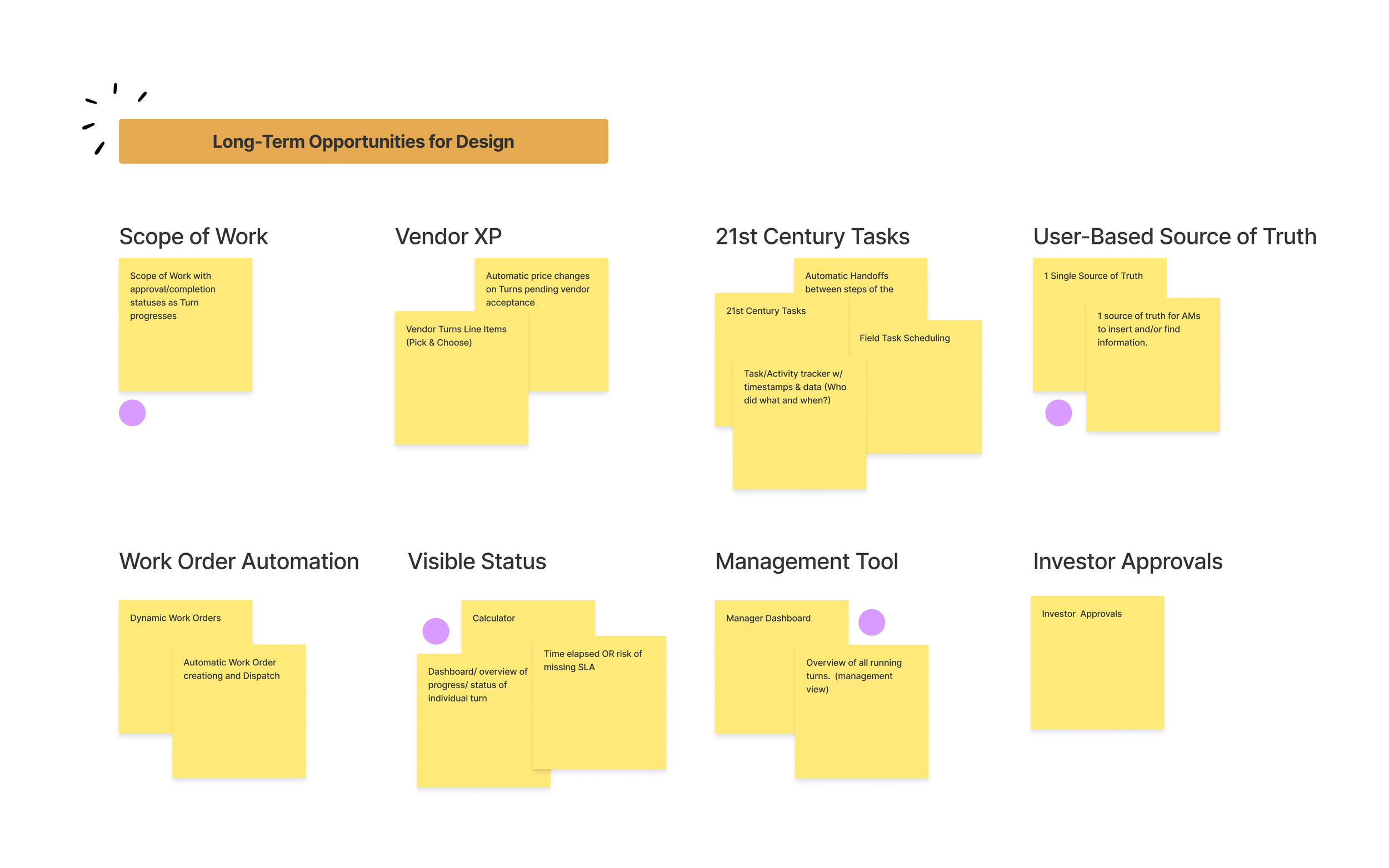
The workshop also looked past the first release, to where design could take Turns next: a better vendor experience, automatic handoffs and task scheduling, one source of truth, visible status, a management view and investor approvals.
05 Ideation
Go wide, then refine
We explored many layouts, narrowed them through critiques against the research, and settled on a page structure that could work across the whole Darwin platform.
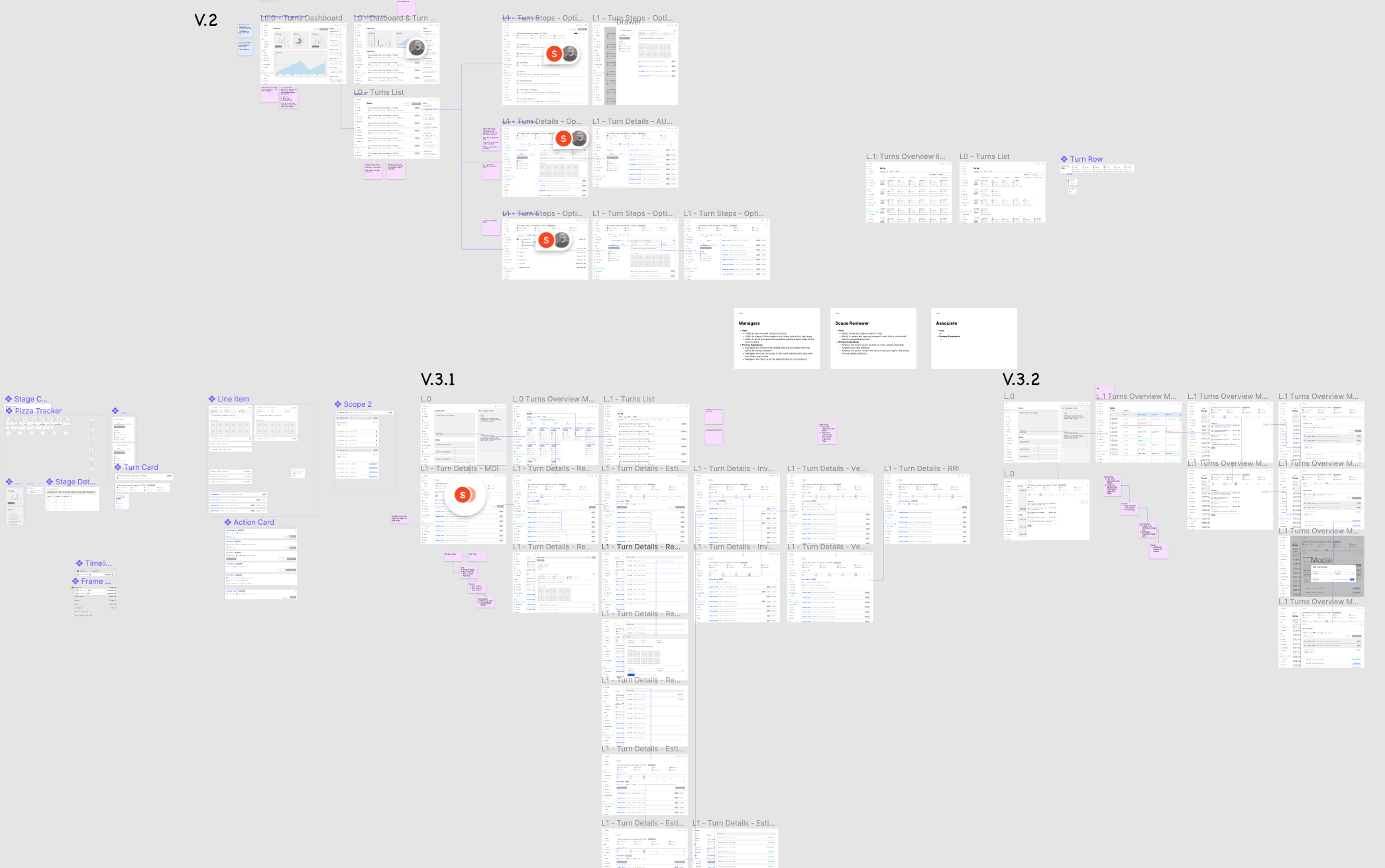
With Darwin’s design team I developed a page structure meant for the whole platform and tested first on the Turn: five levels, from an overview of tasks to nested detail, flexible enough for other projects to organize their information the same way.
- L0Overview
Tasks, each with its actions, beside notifications and updates
Opens from- My Overview, in the navigation
- L1Section overview
Everything in one section, displayed together, with the triggers for its actions
Opens from- A section in the navigation
- L2Create mode
Inputs and selects, help and support, and the actions that finish
Opens from- An action trigger in L1
- L3Detailed information
A detail panel over the section: an action bar, a standard block and variable blocks
Opens from- A task in L0
- Content in L1
- L4Nested detailed information
A nested detail over the detail, with its own action bar and blocks
Opens from- A content block in L3
We built a low-fidelity prototype in two options to test with users: a landing page, nested information, and the actions that move a Turn to its next stage and complete it.
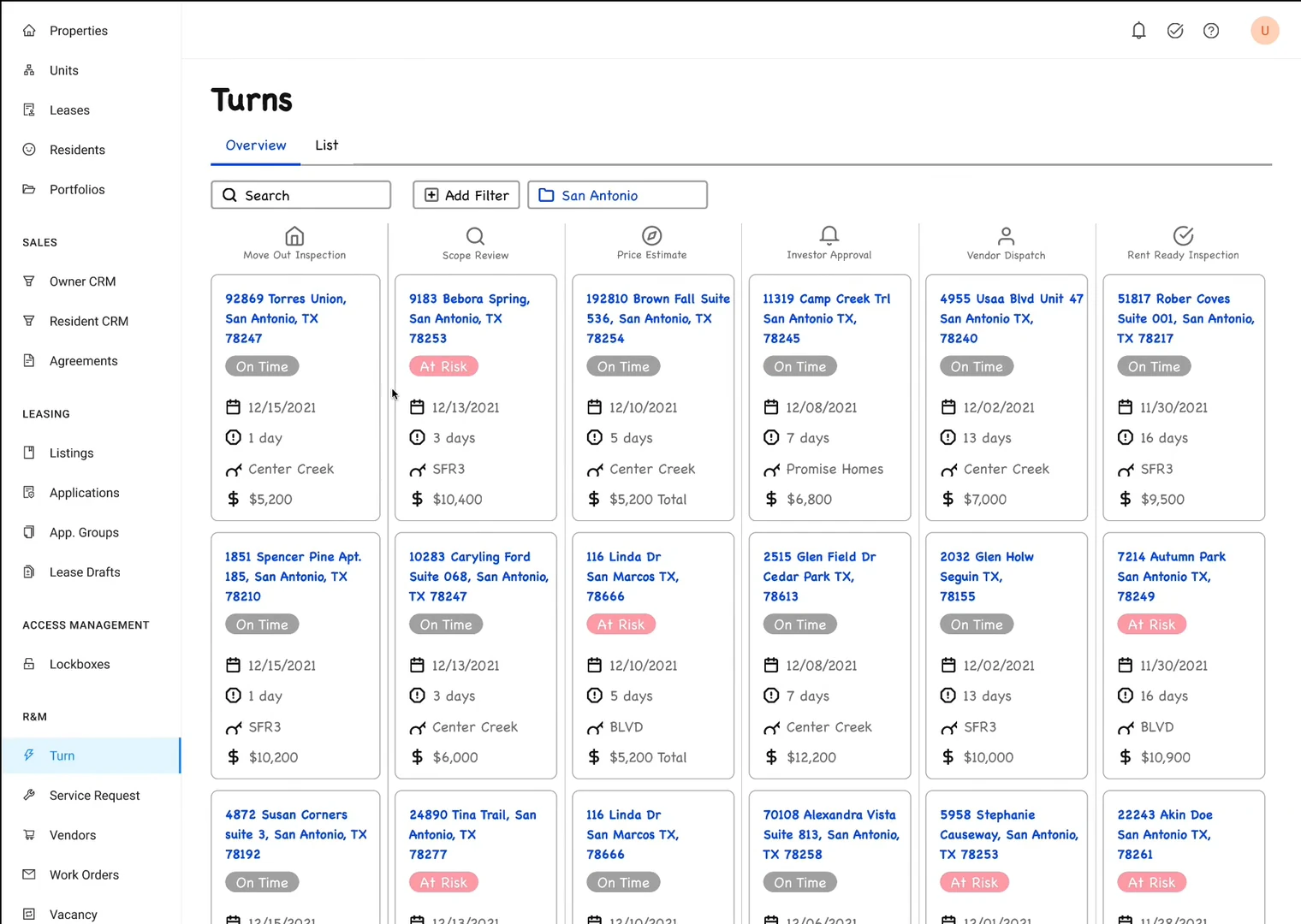
06 Validation
Testing before high fidelity
I led structured one-on-one sessions on the prototype with the people who run Turns. The synthesis validated our decisions, flagged what was missing and gave us the confidence to move to high fidelity.
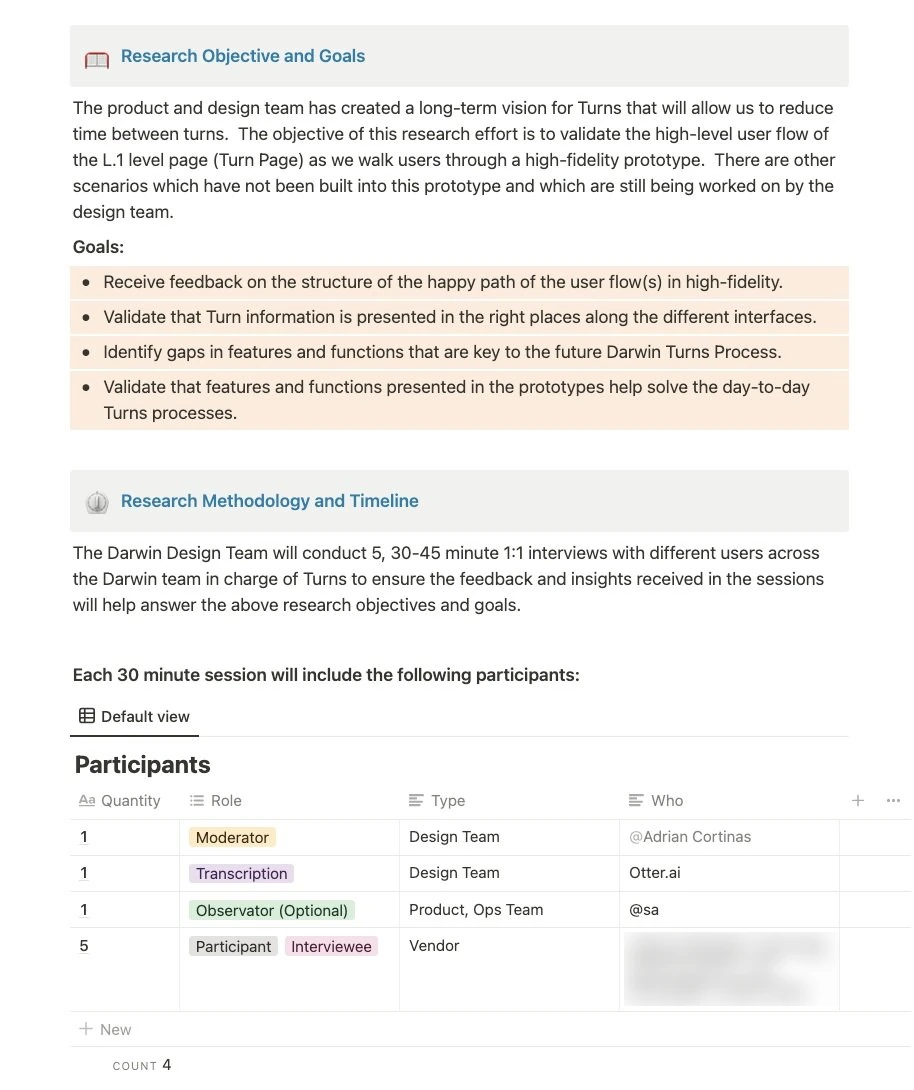
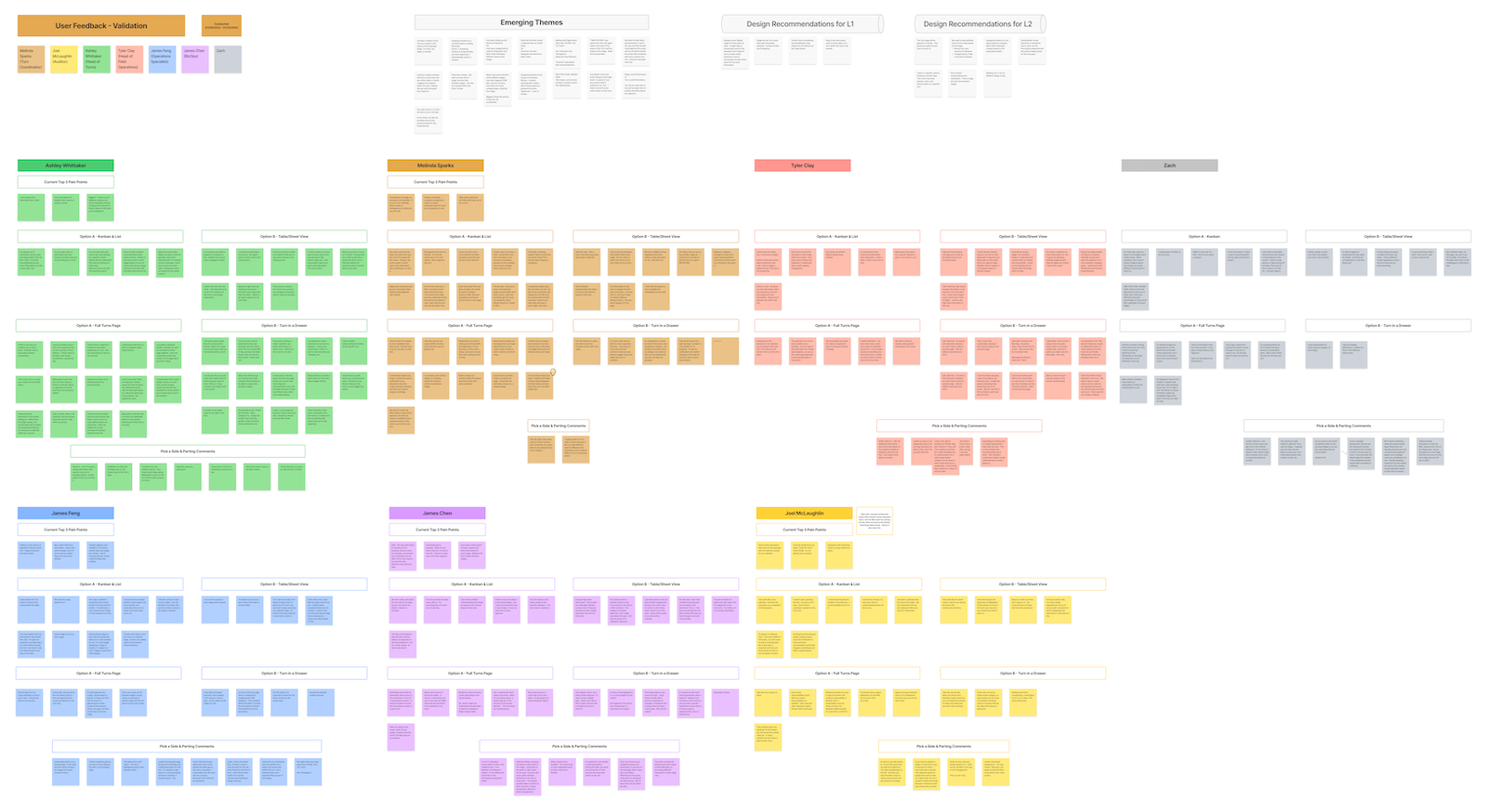
The sessions ran online. I walked each person through the prototype and asked the same structured questions, then compiled the answers on one board, where they became emerging themes and design recommendations for each level of the page.
07 MVP delivery
On the web and in the field
From the validated direction I designed the end-to-end experience in high fidelity, mapped its user flow for engineering, and adapted it for the iPads the field team inspects on.
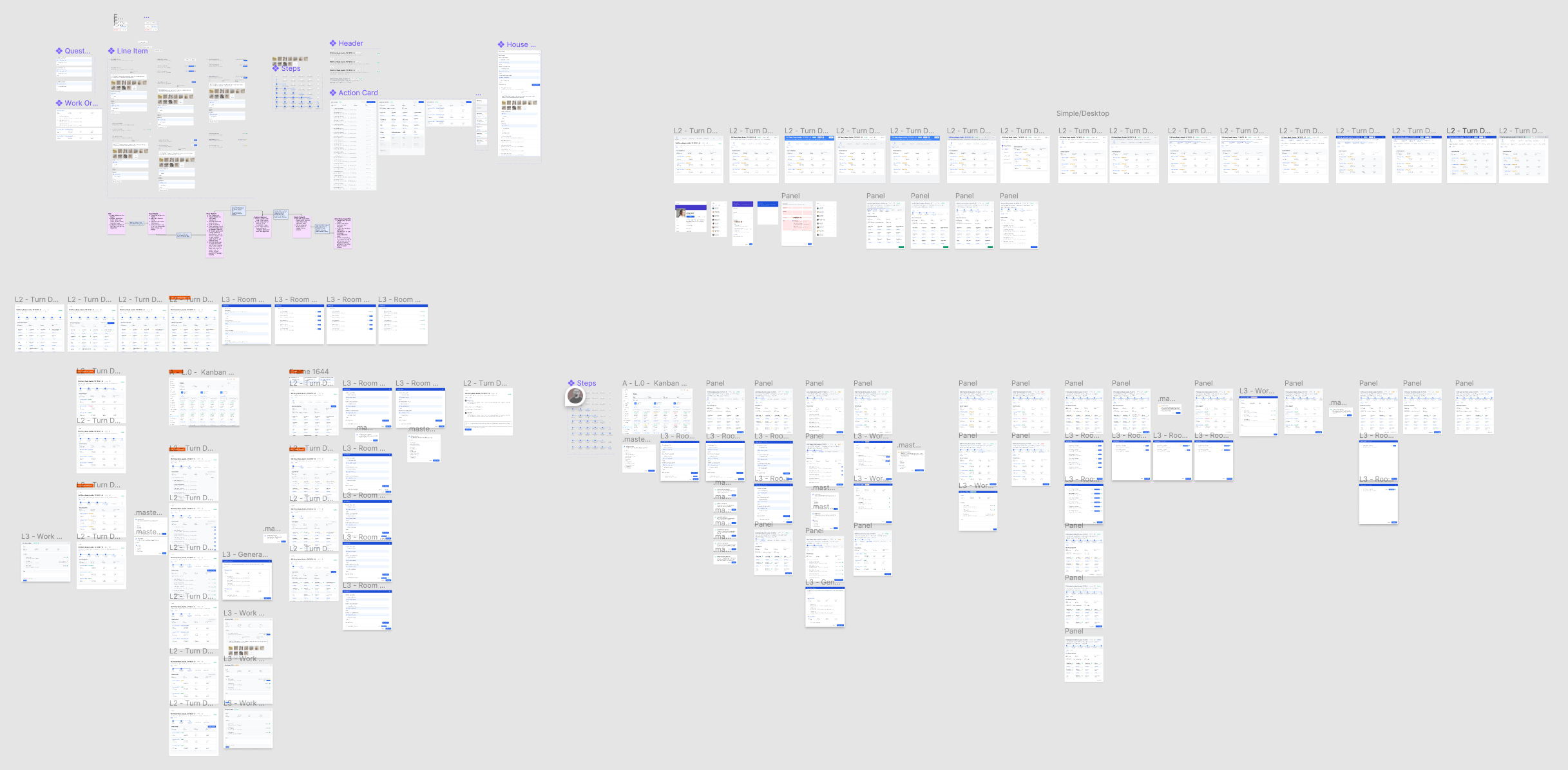
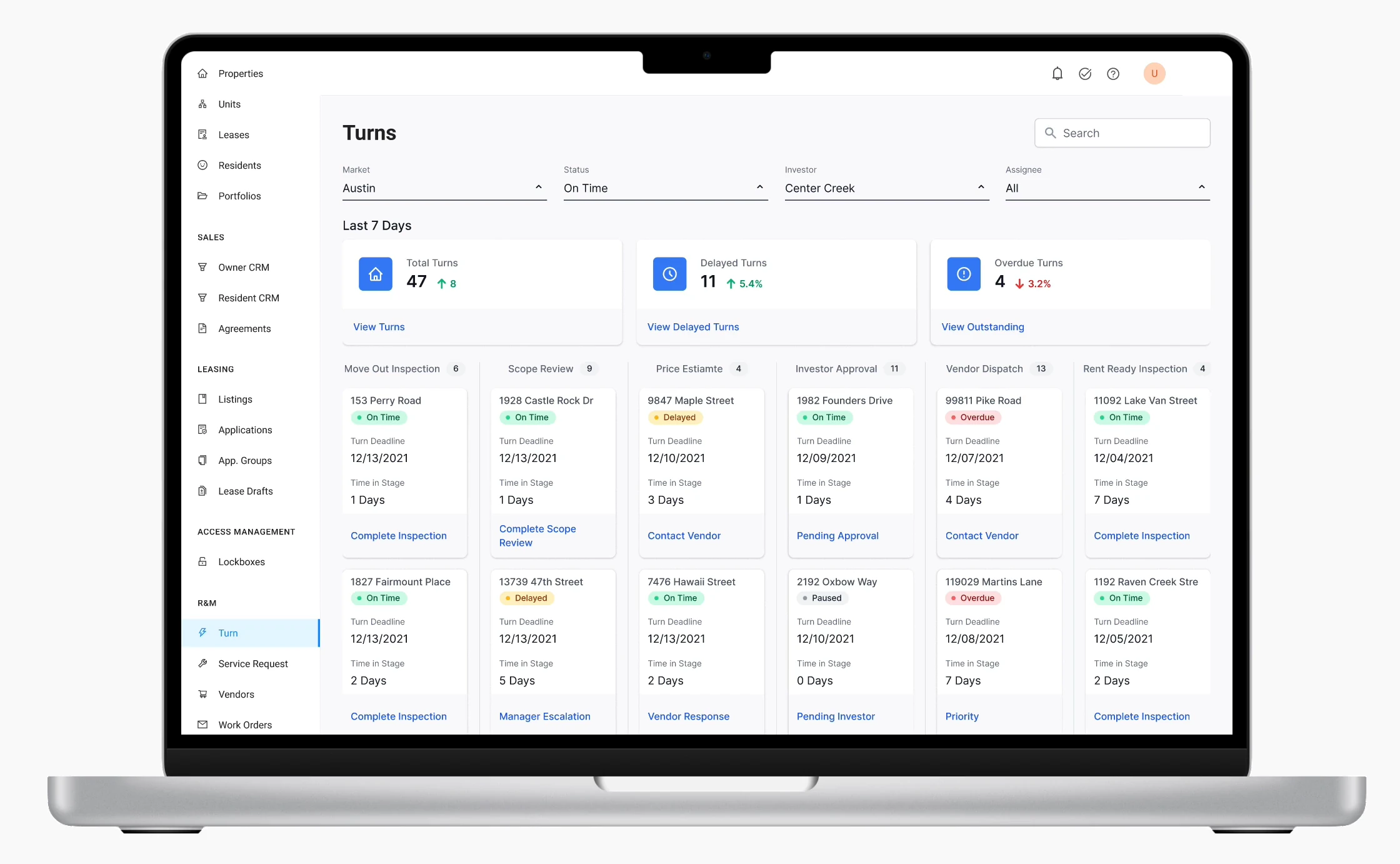
I designed the screens with specific users in mind, working with the design team on a clear visual hierarchy. To guide engineering, and to show business stakeholders how each person moves through a Turn, I mapped the prototype’s user flow: six stages of the Turn page, each with its own loops.
01 · Move Out Inspection
02 · Scope Review
03 · Price Estimate
04 · Investor Approval
05 · Vendor Dispatch
06 · Rent Ready Inspection
- Move-out date confirmed leads to Turn page at the Move Out Inspection stage
- Turn page at the Move Out Inspection stage leads to Click a room section
- Click a room section leads to The room drawer slides up
- The room drawer slides up leads to Answer the questions and add line items
- Answer the questions and add line items leads to Add more line items?
- Add more line items? — No — Add another room?
- Add more line items? — Yes — The room drawer slides up
- Add another room? — No — Move Out Inspection complete
- Add another room? — Yes — Click a room section
- Move Out Inspection complete leads to Turn page at the Scope Review stage
- Turn page at the Scope Review stage leads to Click a room section
- Click a room section leads to The room drawer slides up
- The room drawer slides up leads to Amend the Scope of Work?
- Amend the Scope of Work? — No — Approve the line items and complete
- Amend the Scope of Work? — Yes — Amend, add or remove line items
- Amend, add or remove line items leads to Approve the line items and complete
- Approve the line items and complete leads to Scope Review complete
- Scope Review complete leads to Turn page at the Price Estimate stage
- Turn page at the Price Estimate stage leads to Assign vendors to line items
- Assign vendors to line items leads to The Create Work Orders drawer slides up
- The Create Work Orders drawer slides up leads to Create and dispatch
- Create and dispatch leads to Sent to the Vendor Portal for the vendor’s review
- Sent to the Vendor Portal for the vendor’s review leads to Does the vendor accept the line items and price?
- Does the vendor accept the line items and price? — Yes — Send for approval
- Does the vendor accept the line items and price? — No: amends a price — Does Darwin accept?
- Does the vendor accept the line items and price? — No: can’t do a line item — Reassign the vendor
- Does Darwin accept? — Yes — Send for approval
- Does Darwin accept? — No — Reassign the vendor
- Reassign the vendor leads to Create and dispatch
- Send for approval leads to Price Estimate complete
- Price Estimate complete leads to Turn page at the Investor Approval stage
- Turn page at the Investor Approval stage leads to Does the investor approve every line item?
- Does the investor approve every line item? — Yes — Investor Approval complete
- Does the investor approve every line item? — No — The line item is removed from the work order’s scope
- The line item is removed from the work order’s scope leads to Investor Approval complete
- Investor Approval complete leads to Turn page at the Vendor Dispatch stage
- Turn page at the Vendor Dispatch stage leads to Does the vendor complete all the work?
- Does the vendor complete all the work? — Yes — Vendor Dispatch complete
- Does the vendor complete all the work? — No — Is additional work needed?
- Is additional work needed? — Yes — Turn page at the Investor Approval stage
- Is additional work needed? — No — Back to Price Estimate Reassign the vendor
- Vendor Dispatch complete leads to Turn page at the Rent Ready Inspection stage
- Turn page at the Rent Ready Inspection stage leads to Click a room section
- Click a room section leads to The room drawer slides up
- The room drawer slides up leads to Does the line item pass?
- Does the line item pass? — Pass — More line items?
- Does the line item pass? — Fail — Back to Vendor Dispatch
- More line items? — Yes — Does the line item pass?
- More line items? — No — More rooms?
- More rooms? — Yes — Click a room section
- More rooms? — No — Add new line items, a change order?
- Add new line items, a change order? — No — Rent Ready Inspection complete
- Add new line items, a change order? — Yes — The system flags a new item to dispatch
- The system flags a new item to dispatch leads to Back to Price Estimate Assign vendors
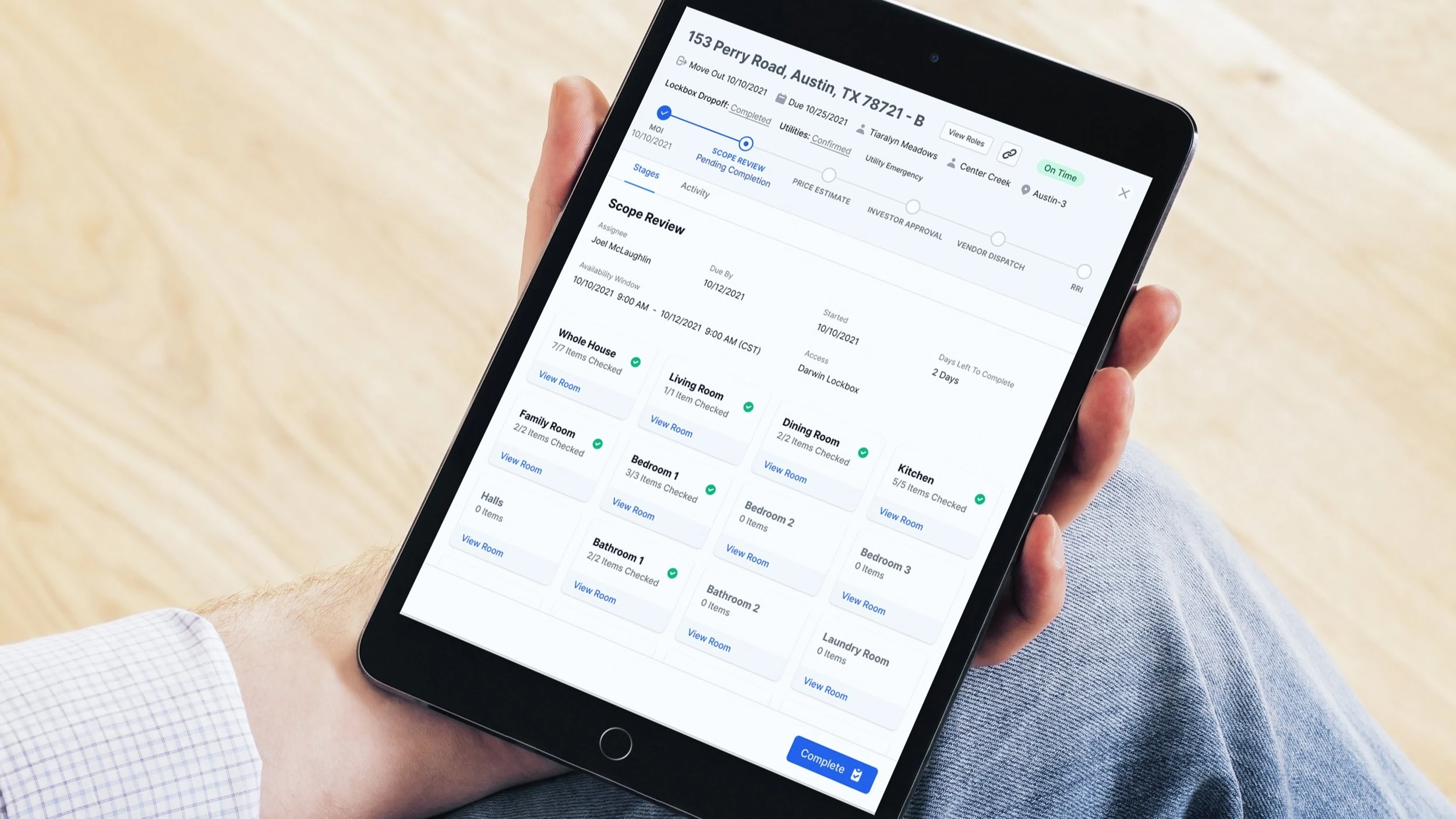
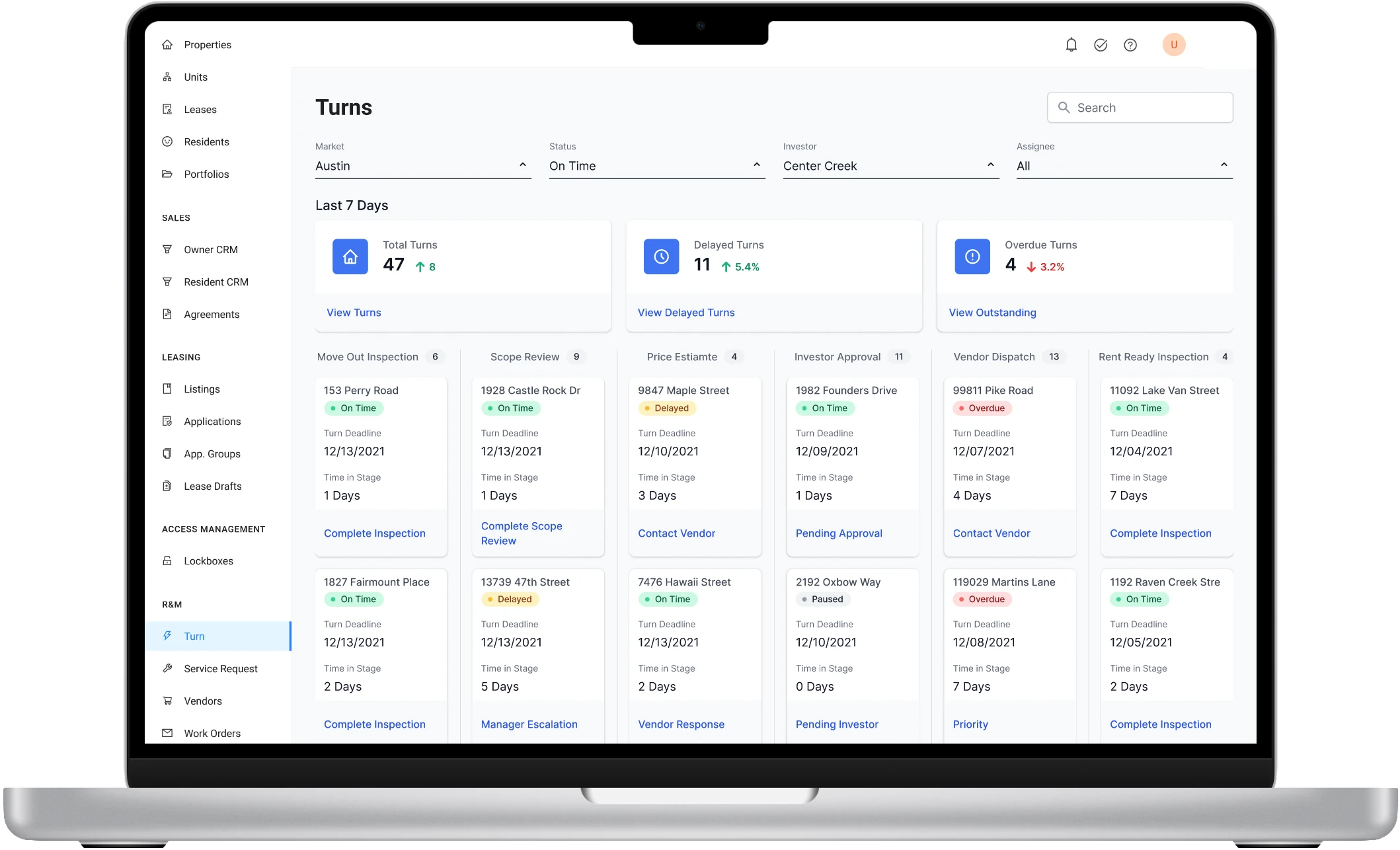
The high-fidelity prototype walks a Turn from move-out to Rent Ready. The mockups delivered for development were built from it, combining the research and the design work with the product manager, partners and the design team.
In the field
The field team does most of its inspections on iPads, so the design had to work on a tablet. I built a short tablet prototype with a Figma plugin, and delivered iPad mockups too, including features the web did not have.