Customer Support Callback
WorkUSAA · Member service · MSR tools
Customer Support Callback
Book a member’s follow-up call during the conversation, and hand the next rep what they need to pick up where it left off
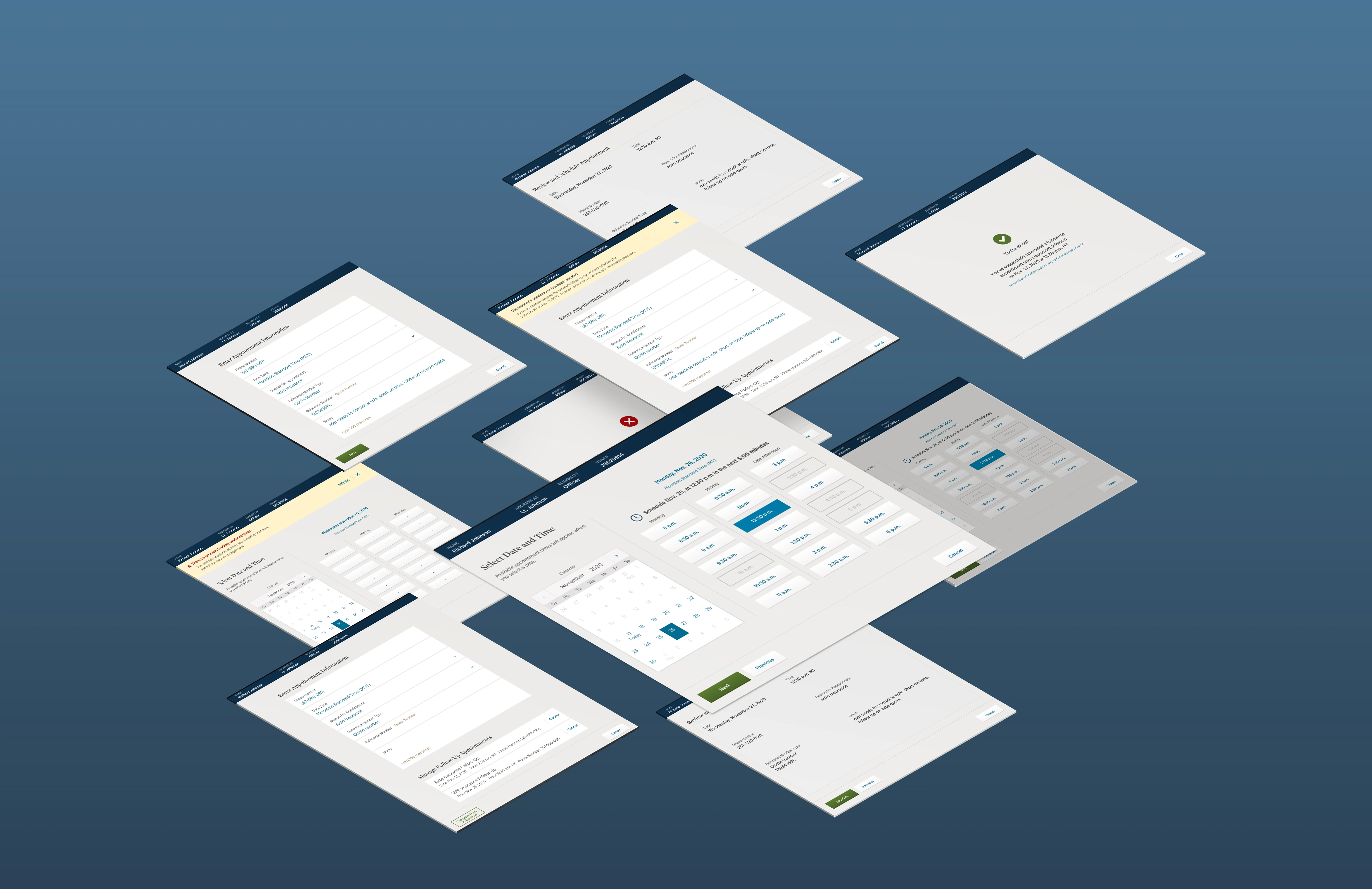
Project snapshot
My contribution
Role
End-to-end UX/UI designer for MSCT on USAA’s MSR Design Team, from the MVP through V2
Focus
Product vision and discovery, research plans and in-person testing with MSRs, user flows, low- and high-fidelity wireframes, InVision prototypes
With
A design producer • critiques from the MSR design team, under a design director • a product owner and a digital product manager • development • business, IT and architecture partners • P&C new-member MSRs
Constraint
Notes limited to the 100 characters the callback dialer can show, and a callback process that had to become compliant with federal regulations
Project details
- Company
- USAA
- Product area
- Member service · Tools for Member Service Representatives
- Discipline
- Product design · Internal tool
- Timeline
- October 2019 → April 2020
- Status
- MVP launched in early 2020; V2 delivered as high-fidelity comps and a prototype, April 2020
- Validation
- 4 rounds of one-on-one MVP testing with MSRs, December 2019 to February 2020 (wireframes, comps, comps with error states, the notes), then V2 sessions with five MSRs
- Result
- Sales finished on the callback: when a member had to drop off mid-offer, the next MSR picked up where the call stopped and could complete the sale of a new product
00 Overview
When a call ends before the member’s business is done, because the member needs to consult a spouse, compare a policy or find a document, a USAA Member Service Representative (MSR) books a follow-up call. Before MSCT, that meant one of several tools, each with its own gaps, and the MSR who made the call didn’t have what they needed to continue, so members repeated themselves.
From late 2019 to spring 2020, as the end-to-end designer on USAA’s MSR Design Team, I designed the Member Support Callback Tool (MSCT): first an MVP for a pilot group of Property & Casualty MSRs who bring in new members, then a second version that added editing appointments and notes MSRs could select instead of type.
01 Context
Callbacks that lost the thread
Members had come to expect a scheduled follow-up. MSRs could book one in several ways, each a poor experience for them and for members.
MSCT gives MSRs one way to schedule a follow-up call with a member, at the date and time that suits the member. The MVP was for a pilot group of Property & Casualty MSRs who specialize in bringing in new members.
The MVP had two jobs
Schedule the follow-up
So a potential member’s business can continue on a later call.
Make the follow-up personal
So the MSR who places the call can carry the conversation on seamlessly.
The tools it would replace offered callbacks or something close to them, and the new systems arriving across the enterprise needed one modern tool they could integrate with.
Early research gave the themes to design around: MSRs wanted to pick up where they had left off with a member, with more detailed notes and context before each callback. As one MSR put it: “I want to continue to communicate with the member on a personal level.”
02 Cross-functional teamwork
Agreeing on value first
Over three days in San Antonio, October 30 to November 1, 2019, business, design, and IT and architecture partners worked with six MSRs in USAA’s human-centered design format, Bring Your Own Epic, to agree on what the tool had to do for MSRs and for members.
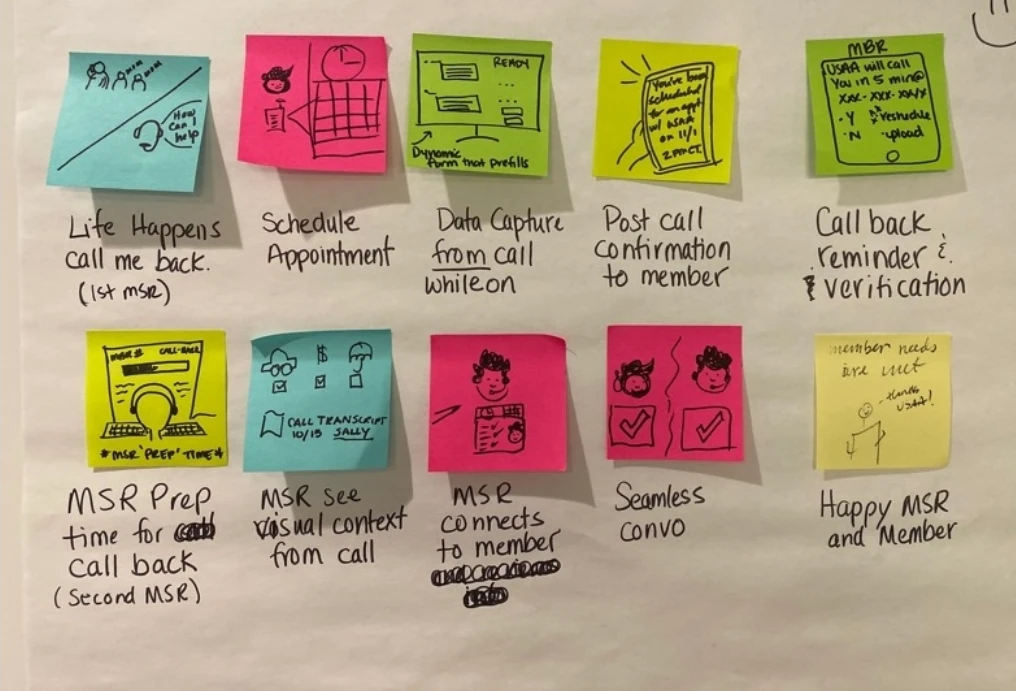
We mapped three scenarios as they were: scheduling a follow-up, letting the member know, and making the call. Each one’s problems fed the next. MSRs couldn’t capture the notes the next MSR needed; between calls, members got voicemails; and the MSR who called back had to ask members to repeat themselves. That MSR was rarely the one who had booked the call: “9/10 of the call backs are not us,” one MSR said.
Value statements
For the MSR
An MSR handling the follow-up call has a way to see all the info needed from the previous contact to complete the member’s business in a timely manner and without frustration.
For the member
The member that requested the follow-up contact is able to pick up where they left off so that they can complete their business on their schedule.
The callback as it was
With those insights and further research, we mapped how callbacks were scheduled. Each kind of call had its own method, only the third-party route carried notes on why the call was placed, and the process as a whole was complex for MSRs and not compliant with federal regulations.
- On the call The MSR works in the Portal and IDComm, taking notes on a scratchpad leads to “Life happens” The member can’t finish now: the MSR offers a callback, or the member asks for one
- “Life happens” The member can’t finish now: the MSR offers a callback, or the member asks for one leads to What kind of call was it?
- What kind of call was it? — Outbound — Callback button in IDComm Opens an Aspect window with some of the member’s details and a date and time
- What kind of call was it? — Inbound — No Callback button for inbound calls
- What kind of call was it? — Third party (LQ-MOM) — Callback entered in the MOM tool The MSR types the date and time the member asks for
- Callback button in IDComm Opens an Aspect window with some of the member’s details and a date and time (≈ 20% of callbacks) leads to No way to add notes or context for the callback No confirmation the request was received
- Callback button in IDComm Opens an Aspect window with some of the member’s details and a date and time (≈ 20% of callbacks) leads to Queued; a different MSR calls on the day
- No Callback button for inbound calls leads to The MSR writes a note or an Outlook event to call back
- The MSR writes a note or an Outlook event to call back leads to On the day, the MSR leaves the queue to call the member back
- Callback entered in the MOM tool The MSR types the date and time the member asks for (≈ 80% of callbacks) leads to Member details copied and pasted into the MOM tool Notes show why the call is placed
- Callback entered in the MOM tool The MSR types the date and time the member asks for (≈ 80% of callbacks) leads to Queued with the third party, which calls and warm-transfers to an MSR
First designs
With a roadmap agreed, the first designs went into InVision Freehand. They explored putting everything a follow-up needs on one page; further exploration settled on three steps: the call’s details, a date and time, and a review before submitting.
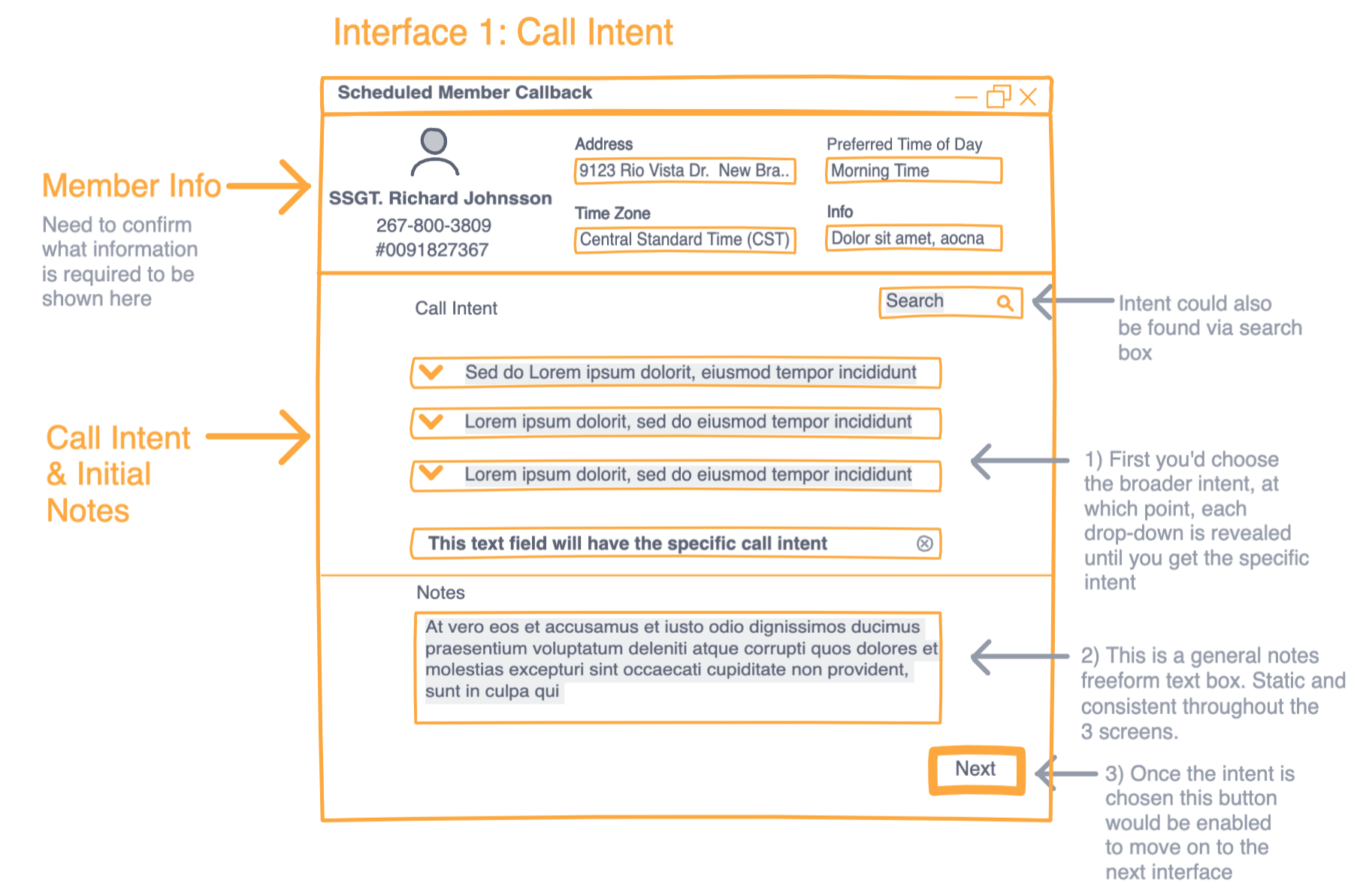
Interface 1, Call Intent: the member’s details, intent drop-downs that could also be searched, and a general notes box
Showing image 01 / 03
03 User feedback sessions
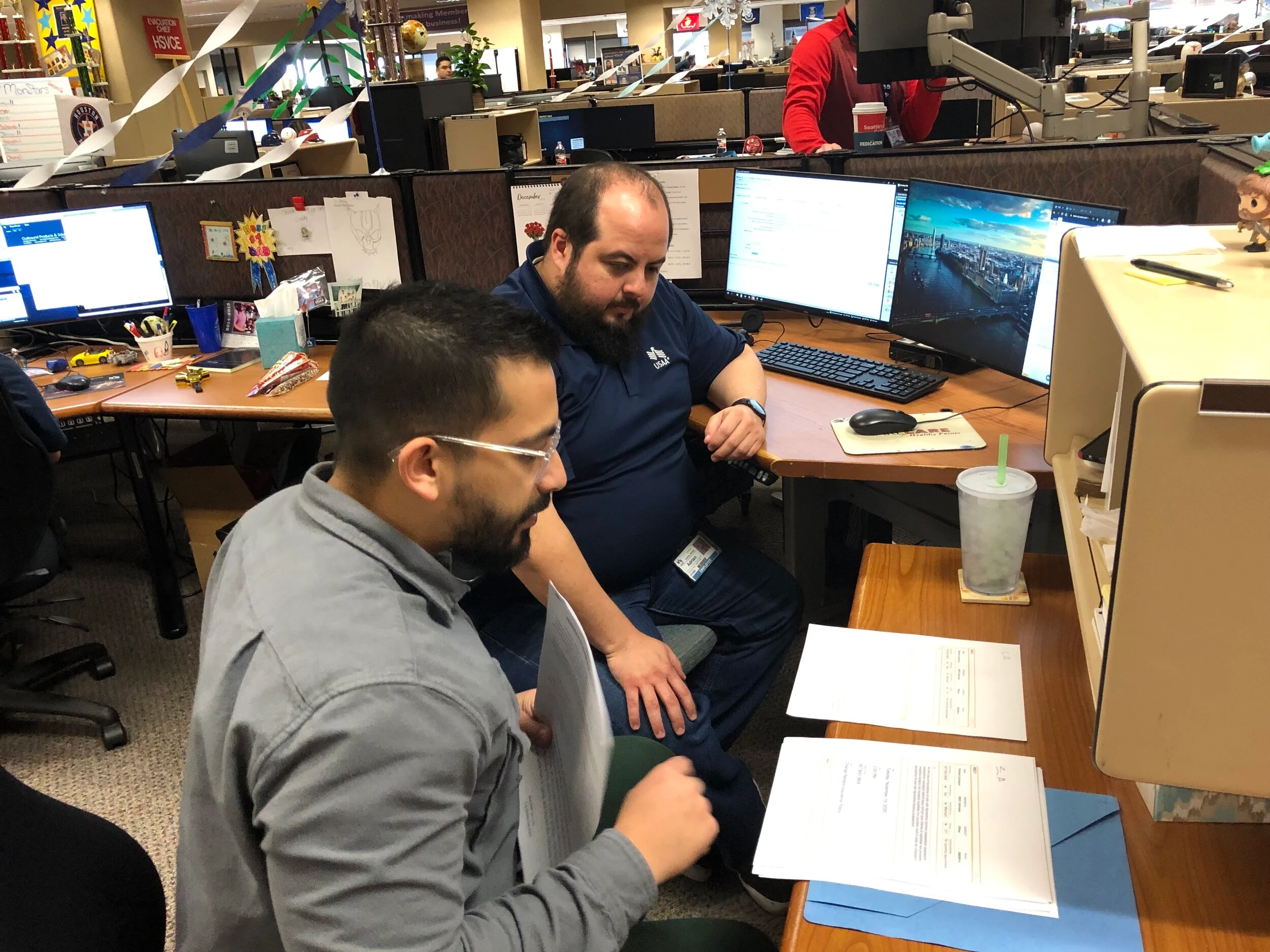
Tested at the MSRs’ desks
From December 2019 to February 2020, design and testing ran on a regular cadence: each round with MSRs checked our decisions and exposed the usability gaps for the next.
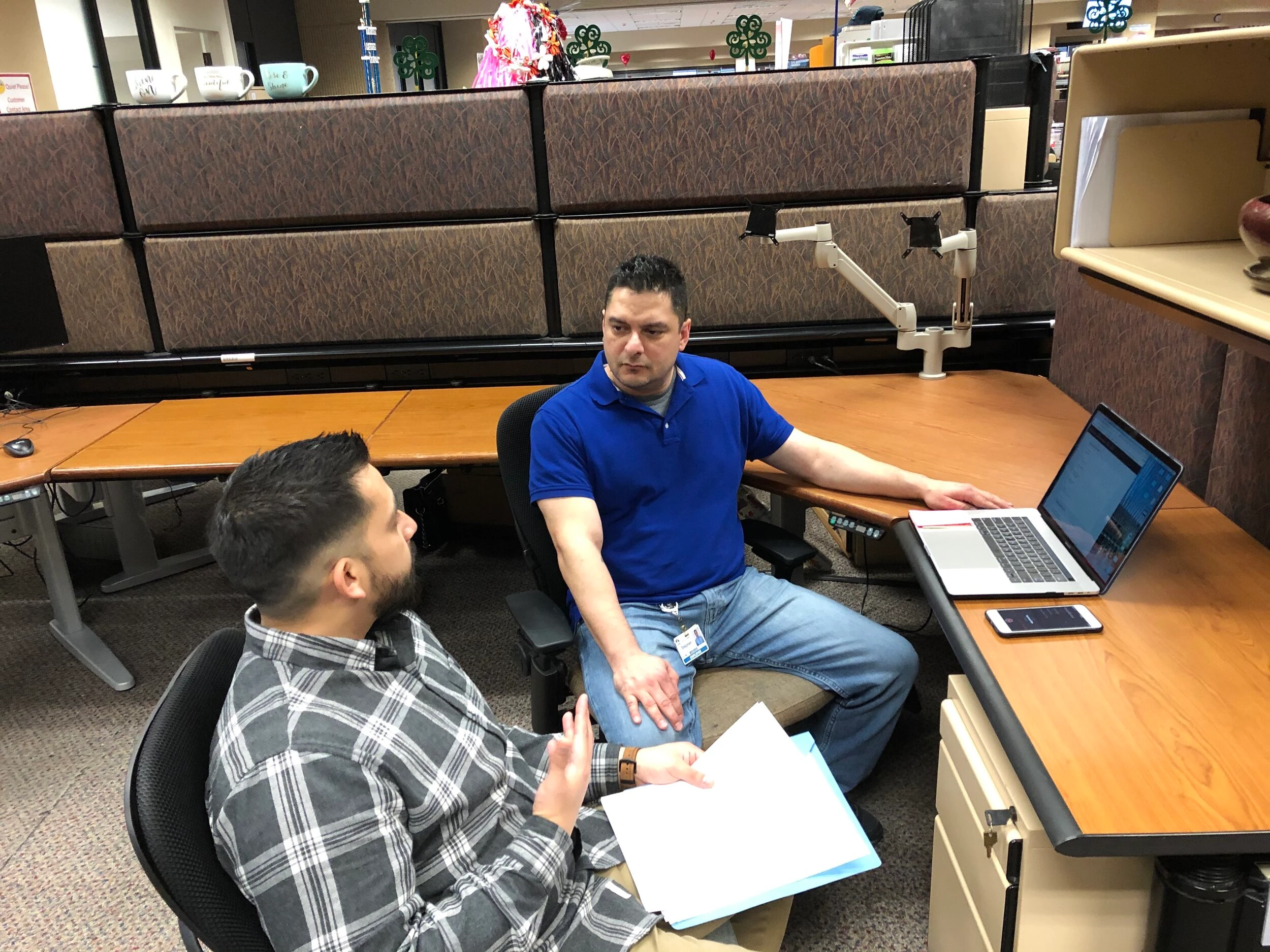
We tested in one-on-one sessions with outbound P&C MSRs: wireframes in December 2019, comps in January, revised comps with error states in early February, and the notes field on its own later that month. I wrote the research plans and moderated the February sessions, with a design teammate taking notes. In the role-played calls of early February, each MSR scheduled a follow-up, canceled an upcoming one and worked through error messages, then walked back through every screen to say what worked and what didn’t.
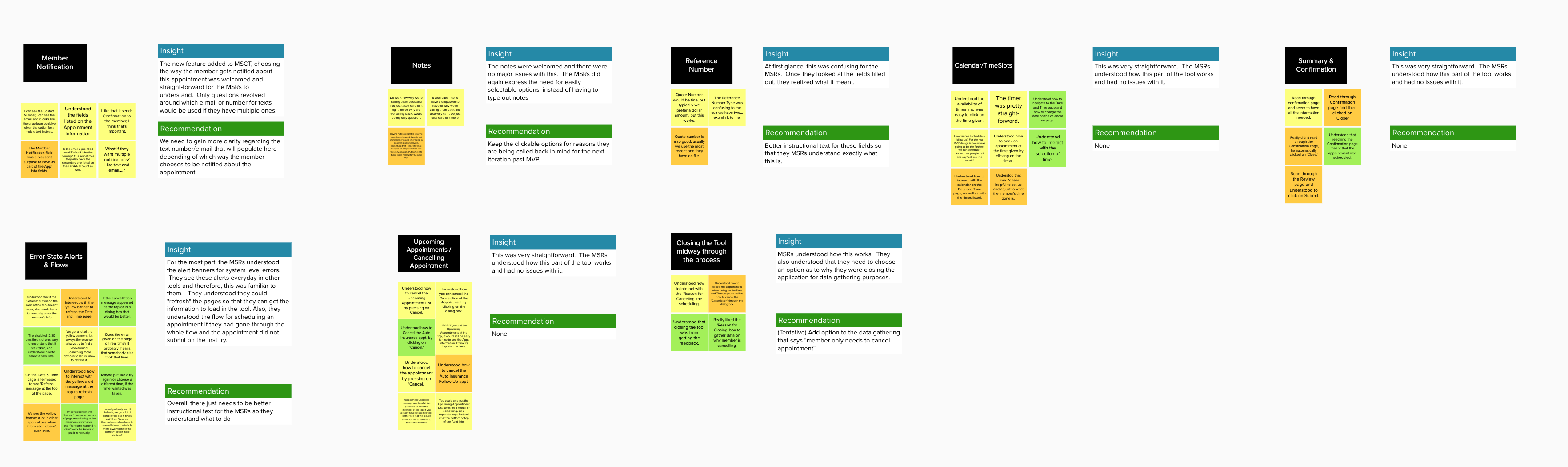
The wireframe round already pointed at the notes. MSRs understood what the section was for but wanted the most common reasons for a callback ready to pick; the recommendation was a set of options, with a smaller free-text box for anything else.
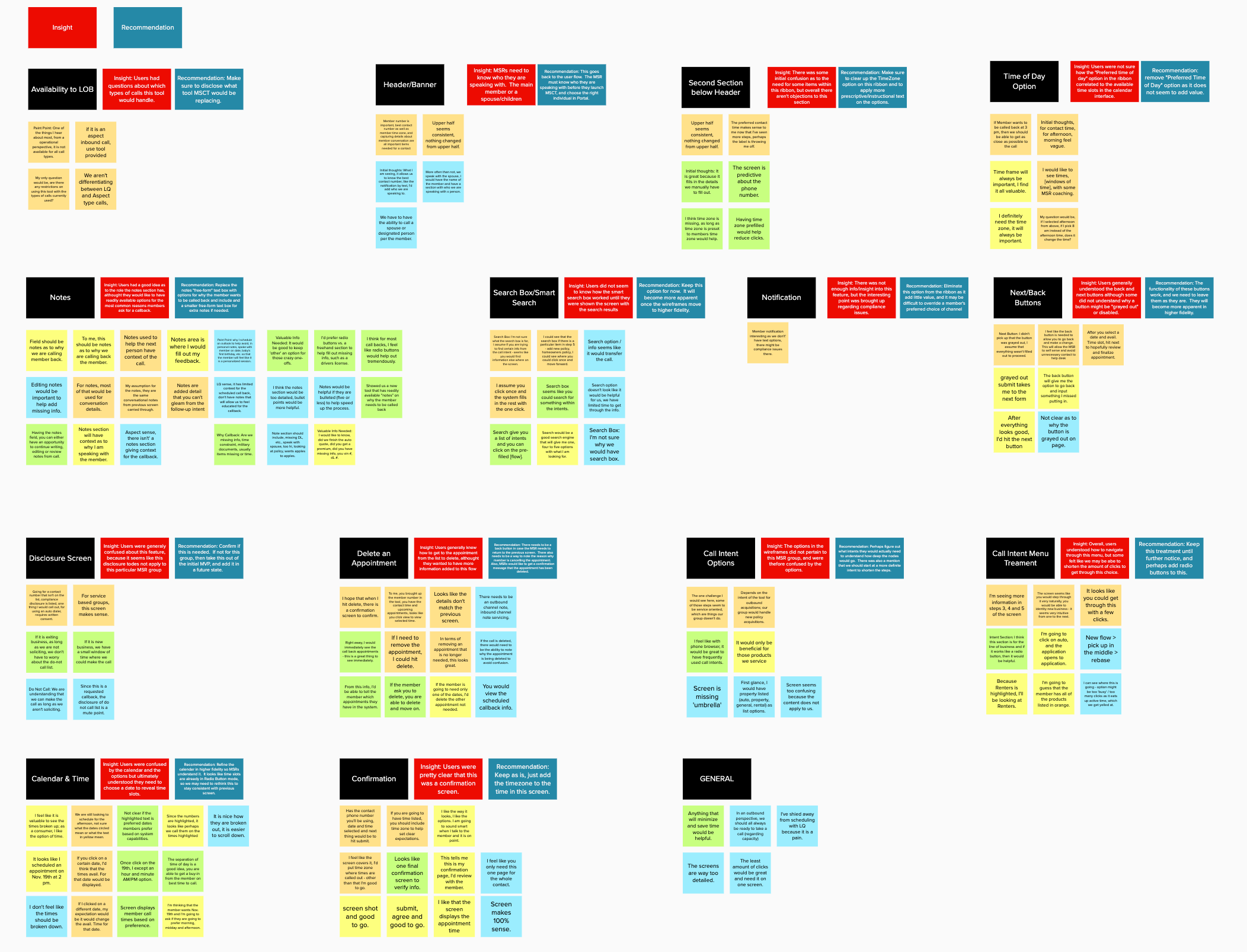
Throughout, we worked with Product and Development to understand the business requirements and the technical limits. One of those limits shaped the notes: the dialer that places the callback shows only 100 characters of them, so we tested whether that was enough for the next MSR to pick up the conversation.
Iterative design process
Round after round, each set of wireframes gave way to the next.
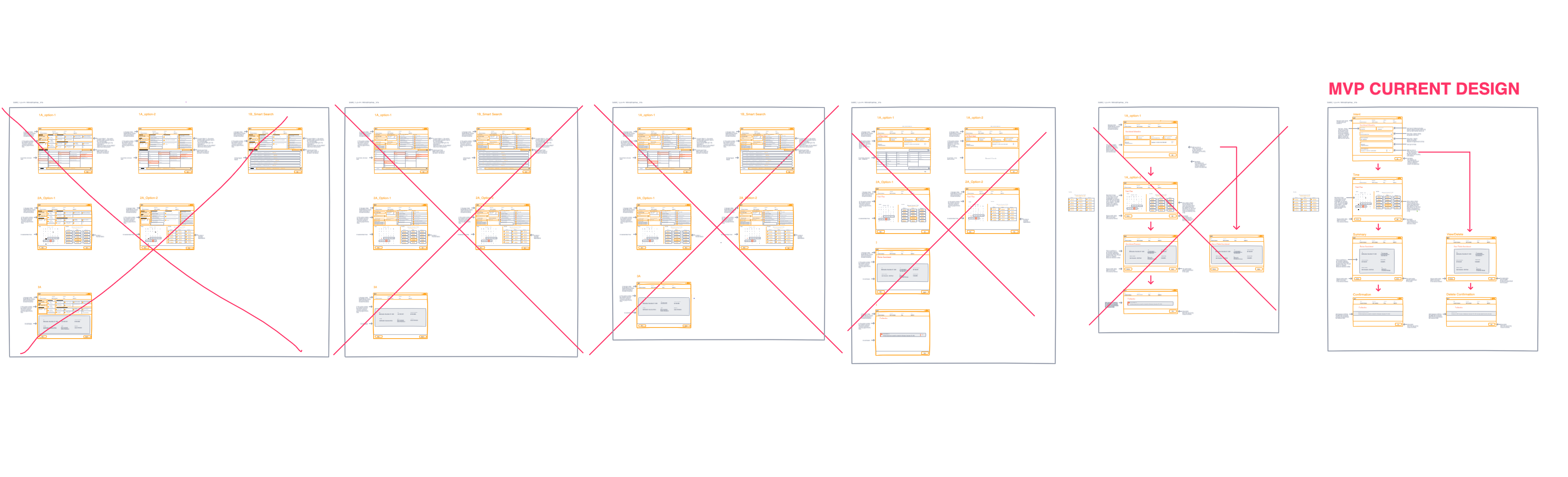
04 Finalizing the design
Wireframes to a tested prototype
With the wireframes settled by testing, we finalized the MVP with Product and Development, refined it in design reviews with the MSR design team, and documented it for the build: a user flow, high-fidelity comps and an InVision prototype, tested before the hand-off.
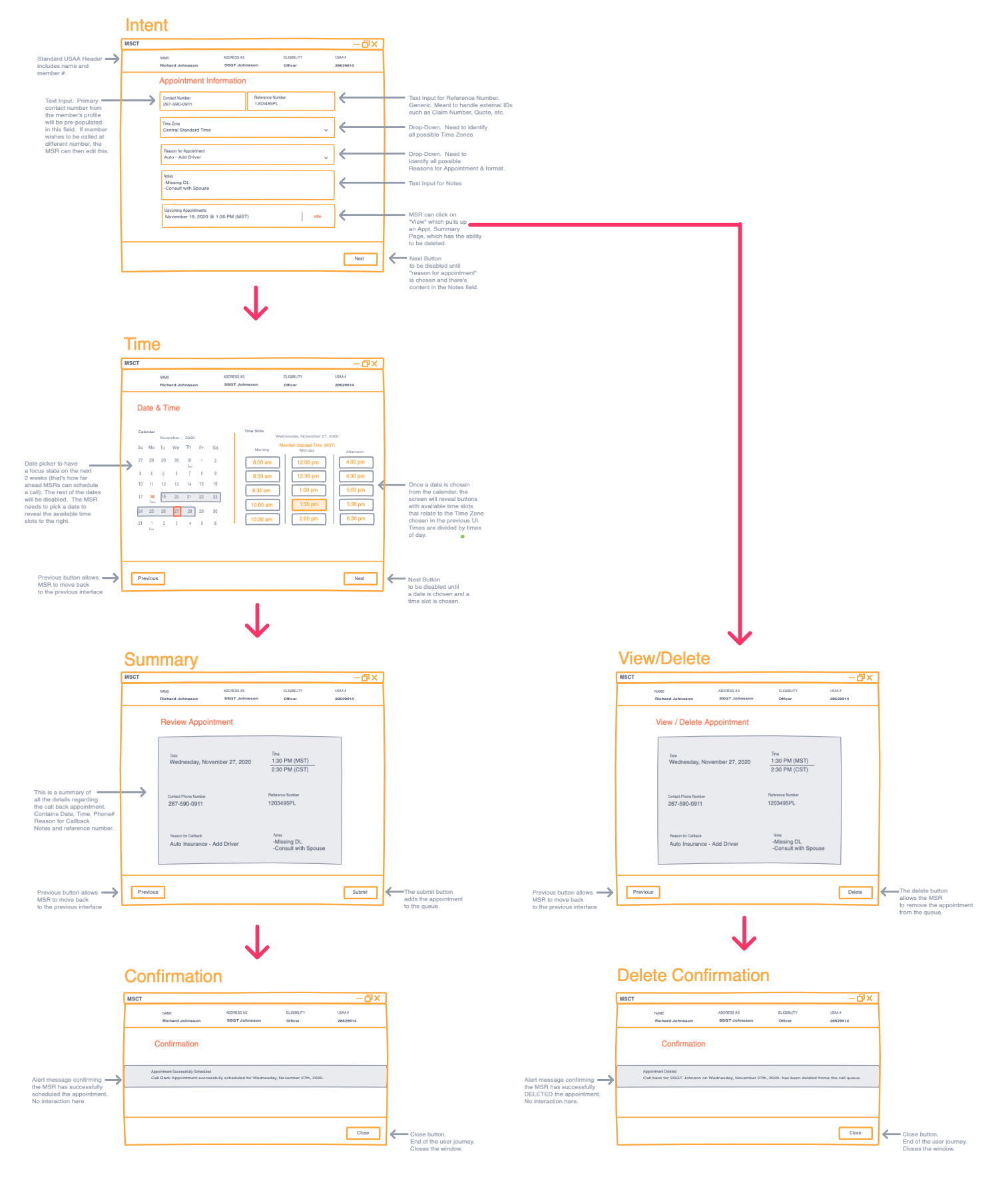
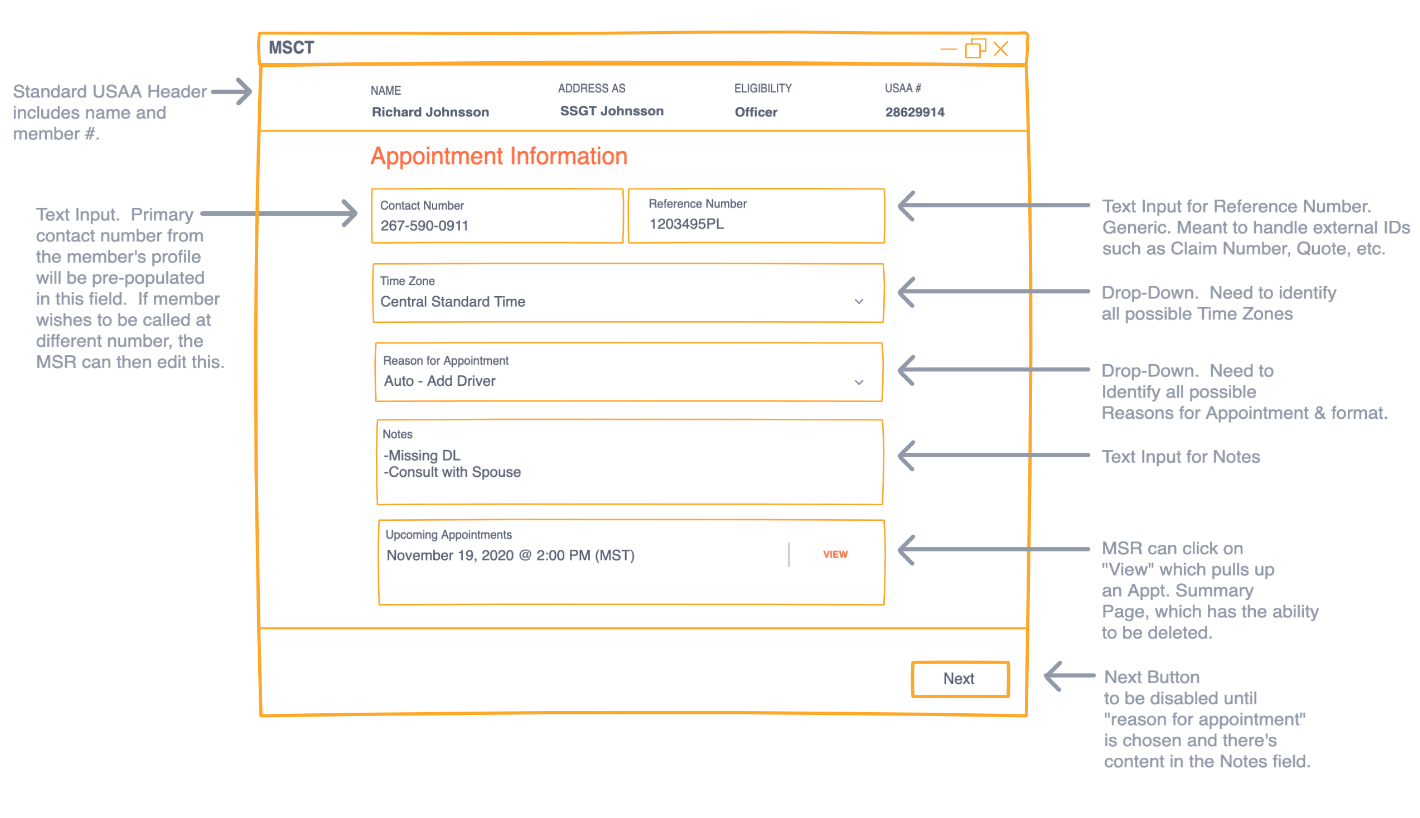
Appointment Information, annotated: contact number, time zone, reason, reference number, notes and the member’s upcoming appointments
Showing image 01 / 04
A user flow helped business partners follow the solution: one window, opened from the MSR’s portal, that schedules a new appointment in three steps, or shows and cancels the member’s upcoming ones.
- The MSR opens MSCT from Quick Tools in the Portal leads to Does the member have upcoming appointments?
- Does the member have upcoming appointments? — No — Appointment Information window
- Does the member have upcoming appointments? — Yes — Appointment Information window with the upcoming appointment list
- Appointment Information window leads to Create, view or cancel an appointment?
- Appointment Information window with the upcoming appointment list leads to Create, view or cancel an appointment?
- Create, view or cancel an appointment? — Create — Appointment Information Enter the member’s and the appointment’s details
- Create, view or cancel an appointment? — View — The MSR leaves with Cancel
- Create, view or cancel an appointment? — Cancel — The MSR cancels the appointment and gets an alert that it’s canceled
- Appointment Information Enter the member’s and the appointment’s details leads to Date & Time Choose a date and a time
- Date & Time Choose a date and a time leads to Summary Review before submitting
- Summary Review before submitting leads to Confirmation Scheduled; the MSR clicks Close
- Confirmation Scheduled; the MSR clicks Close leads to MSCT window closes
- Date & Time Choose a date and a time — Change earlier entries? — Appointment Information Enter the member’s and the appointment’s details
- Summary Review before submitting — Change earlier entries? — Date & Time Choose a date and a time
- Appointment Information Enter the member’s and the appointment’s details leads to The MSR leaves with Cancel
- Date & Time Choose a date and a time leads to The MSR leaves with Cancel
- Summary Review before submitting leads to The MSR leaves with Cancel
- The MSR leaves with Cancel leads to Data capture Why is the tool being closed?
- Data capture Why is the tool being closed? leads to MSCT window closes
- The MSR cancels the appointment and gets an alert that it’s canceled leads to Create a different appointment?
- Create a different appointment? — No — The MSR leaves with Cancel
- Create a different appointment? — Yes — Does the member have upcoming appointments?
The high-fidelity comps went to development as design specs.
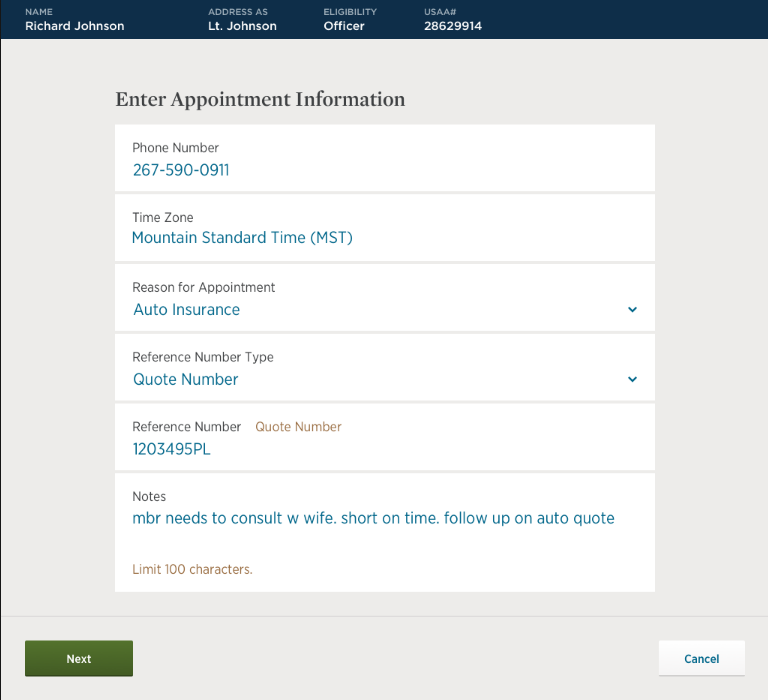
Enter Appointment Information, filled in: phone number, time zone, reason, quote number and a note within the 100-character limit
Showing image 01 / 06
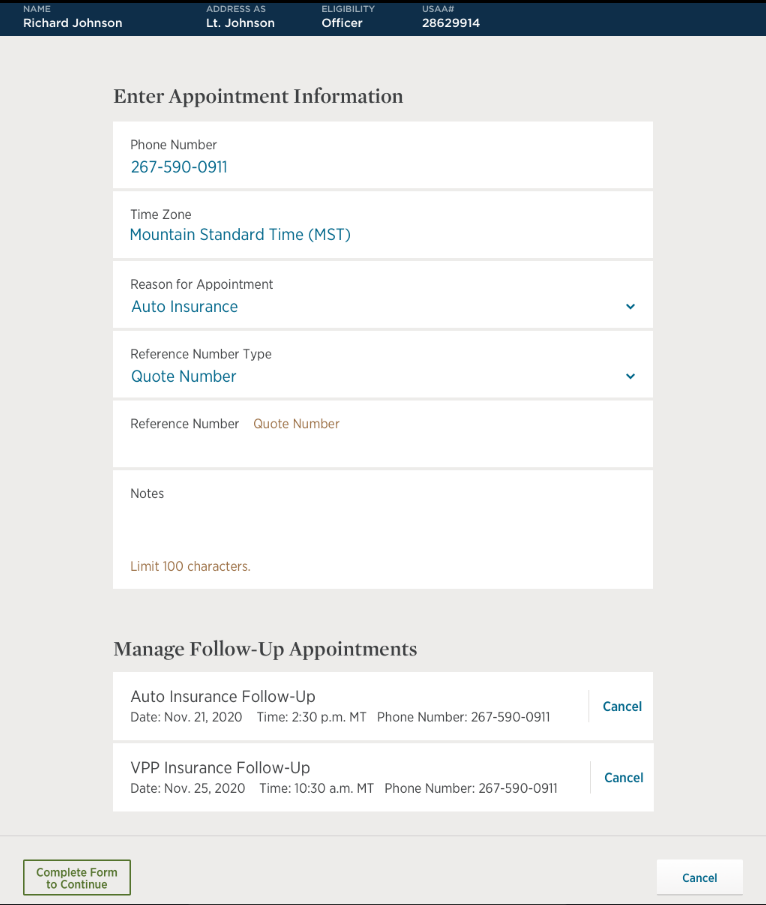
Manage Follow-Up Appointments: the member’s upcoming calls listed under the form, each with Cancel
Showing image 01 / 04
05 After the MVP
Built on the MVP
Launched in early 2020, the MVP helped MSRs cut down on the calls they had to make after the first follow-up, and let a conversation interrupted mid-sale continue: when a member had to drop off while an MSR was offering a new product, such as insurance or a credit card, the next MSR could pick up where it stopped and finish the sale. We kept working with the product owner, the digital product manager, the development team and the same group of MSRs, gathering data on how the tool was used.
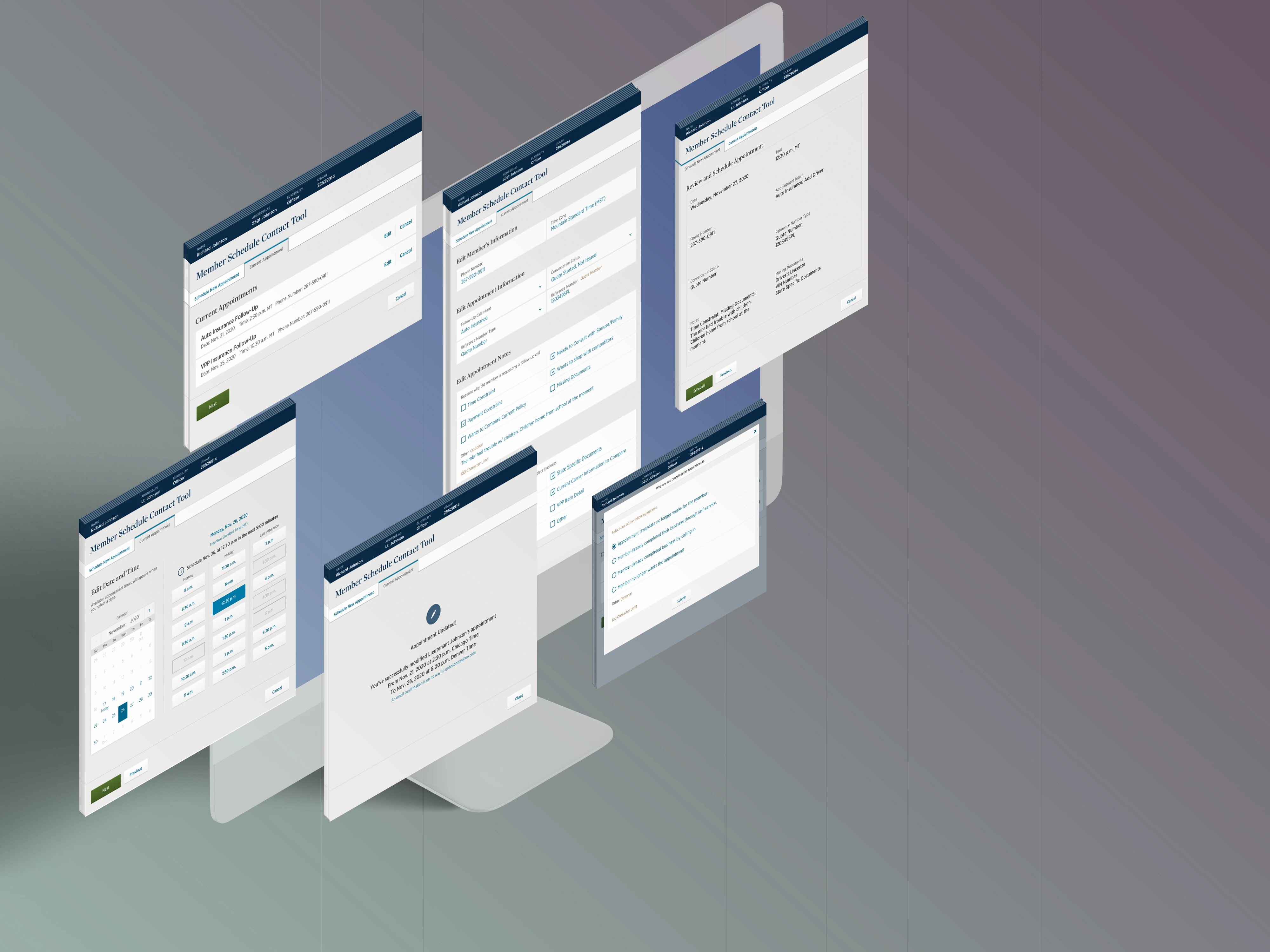
V2 added two things identified early in the project and sharpened by what MSRs told us: changing an existing appointment, and notes MSRs could click instead of type.
February’s comp testing had said as much about the notes. MSRs welcomed them and asked again for options they could select; the recommendation was to keep clickable reasons in mind for the next iteration past the MVP.
Scheduling a new appointment kept the MVP’s three steps, and scheduling and current appointments moved to tabs of their own.
- The MSR opens MSCT to schedule a callback with the member leads to Schedule New Appointment tab Enter the appointment’s details
- Schedule New Appointment tab Enter the appointment’s details — Next — The system shows the available dates and times
- The system shows the available dates and times leads to Choose a date and a time
- Choose a date and a time — Next — Review the information and schedule
- Review the information and schedule — Schedule — Confirmation
- Confirmation — Close — The MSR is ready for the next call
- Choose a date and a time — Date — The system shows the available times
- The system shows the available times — Time — The system starts a timer that holds the slot
- The system starts a timer that holds the slot leads to Choose a date and a time
- Choose a date and a time — Previous — Schedule New Appointment tab Enter the appointment’s details
- Review the information and schedule — Previous — Choose a date and a time
- Confirmation — Previous — Review the information and schedule
- Schedule New Appointment tab Enter the appointment’s details — Close — The system checks the MSR wants to leave
- Choose a date and a time leads to The system checks the MSR wants to leave
- Review the information and schedule leads to The system checks the MSR wants to leave
- The system checks the MSR wants to leave — Yes — The system asks why the MSR is leaving
- The system checks the MSR wants to leave — No — Back to the screen the MSR left
- The system asks why the MSR is leaving — Submit — The MSR is ready for the next call
06 Low-fidelity wireframes
Back to low fidelity
The MVP had gone to development as high-fidelity comps, but V2 started in low fidelity, to test new ideas quickly.
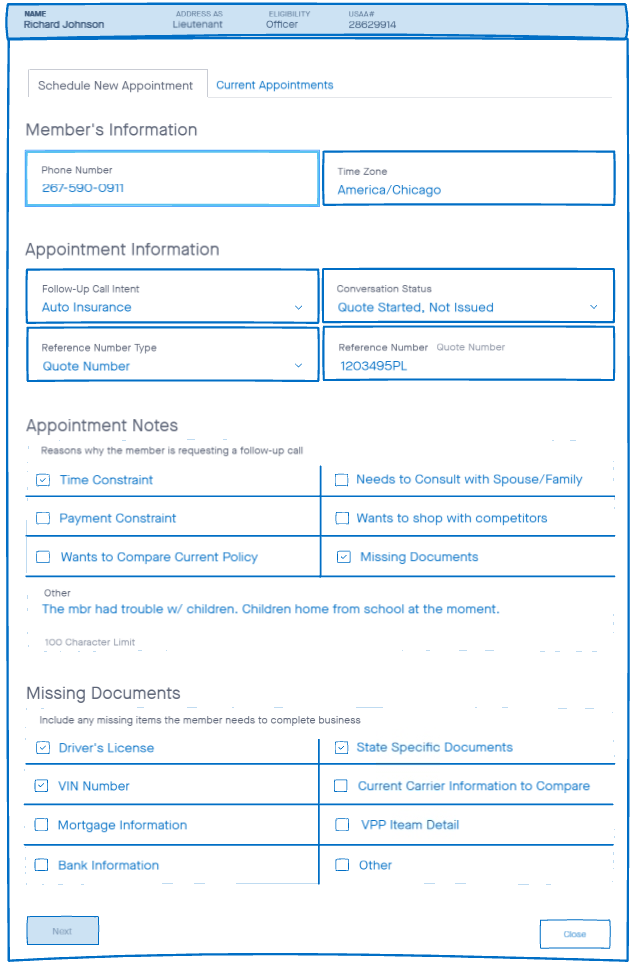
The notes became reasons to tick, such as a time constraint, a payment constraint or a need to consult a spouse, with an optional line of free text. A second list records the documents the member still needs to complete their business.
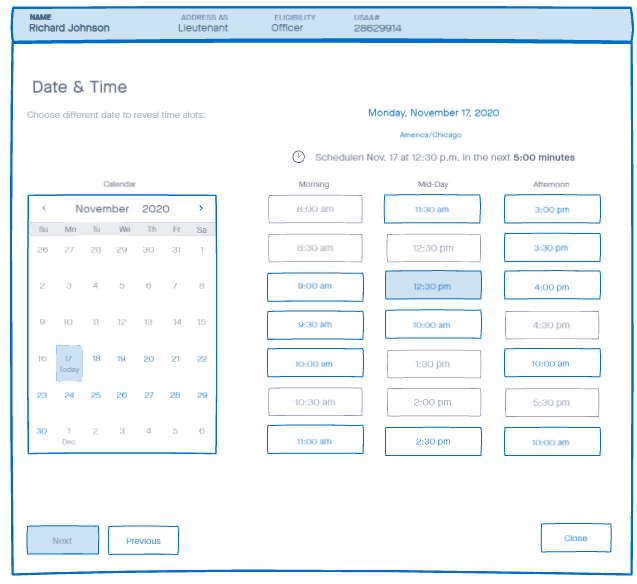
Date & Time: a slot chosen and held for five minutes
Showing image 01 / 03
07 Edit & cancel
Changes, one tab away
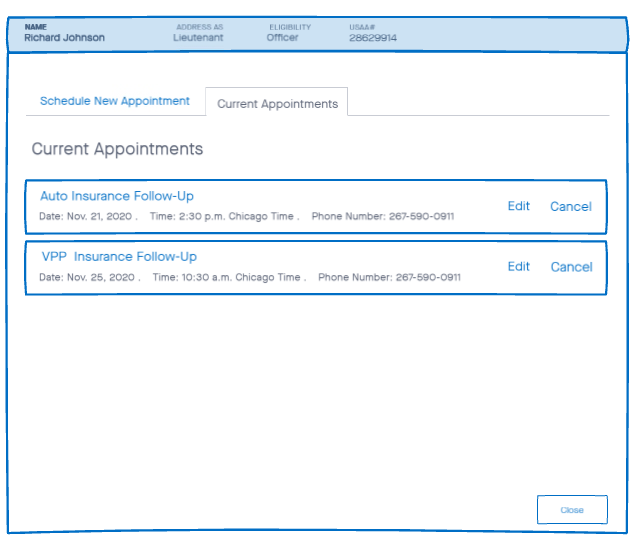
Members had asked to change upcoming appointments, and editing had been on the experience-based roadmap from the start. Current appointments got a tab of their own, where the MSR can edit or cancel each one.
Editing follows the same steps as scheduling: change the details if the member needs to, then the date and time, review, and save.
- The MSR opens MSCT to edit a member’s appointment leads to Schedule New Appointment tab
- Schedule New Appointment tab — Tab — Current Appointments tab
- Current Appointments tab — Edit — Edit the appointment’s details if the member needs to
- Edit the appointment’s details if the member needs to — Next — The system shows the available dates and times
- The system shows the available dates and times leads to Edit the date and time if the member needs to
- Edit the date and time if the member needs to — Next — Review the edits and save
- Review the edits and save — Save — Appointment update confirmation
- Appointment update confirmation — Close — The MSR is ready for the next call
- Edit the date and time if the member needs to — Date — The system shows the available times
- The system shows the available times — Time — The system starts a timer that holds the slot
- The system starts a timer that holds the slot leads to Edit the date and time if the member needs to
- Edit the appointment’s details if the member needs to — Previous — Current Appointments tab
- Edit the date and time if the member needs to — Previous — Edit the appointment’s details if the member needs to
- Review the edits and save — Previous — Edit the date and time if the member needs to
- Appointment update confirmation — Previous — Review the edits and save
- Edit the appointment’s details if the member needs to — Close — The system checks the MSR wants to leave
- Edit the date and time if the member needs to leads to The system checks the MSR wants to leave
- Review the edits and save leads to The system checks the MSR wants to leave
- The system checks the MSR wants to leave — Yes — The system asks why the MSR is leaving
- The system checks the MSR wants to leave — No — Back to the screen the MSR left
- The system asks why the MSR is leaving — Submit — The MSR is ready for the next call
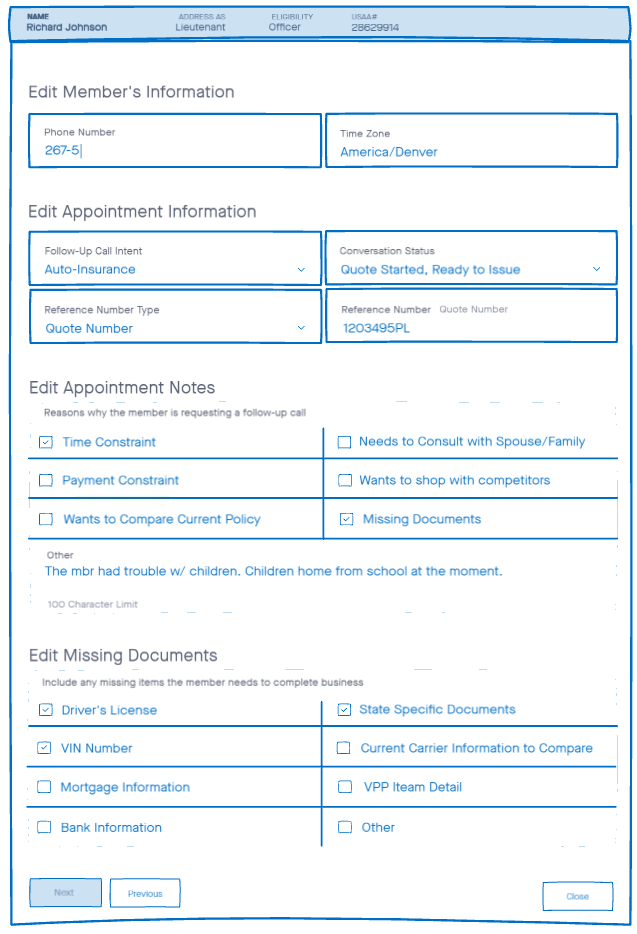
Edit Member’s Information: the appointment’s details, notes and missing documents, ready to change
Showing image 01 / 04
December’s testing had asked for a way to record why a member cancels. In V2, canceling asks for a confirmation and the member’s reason before the appointment leaves the list.
- The MSR opens MSCT to cancel a member’s appointment leads to Schedule New Appointment tab
- Schedule New Appointment tab — Tab — Current Appointments tab
- Current Appointments tab — Cancel — The system asks to confirm the cancellation
- The system asks to confirm the cancellation — Yes — The system asks why the member is canceling
- The system asks to confirm the cancellation — No — Current Appointments tab
- The system asks why the member is canceling — Submit — The system confirms the appointment is canceled
- The system confirms the appointment is canceled leads to Current Appointments tab updated
- Current Appointments tab updated — Close — The system checks the MSR wants to close MSCT
- The system checks the MSR wants to close MSCT — Yes — MSCT closes The MSR is ready for the next call
- The system checks the MSR wants to close MSCT — No — Current Appointments tab updated
08 User feedback and synthesis
MSRs in the loop
Our MSR group stayed involved through V2. Testing with them regularly surfaced usability problems to resolve before the hand-off.
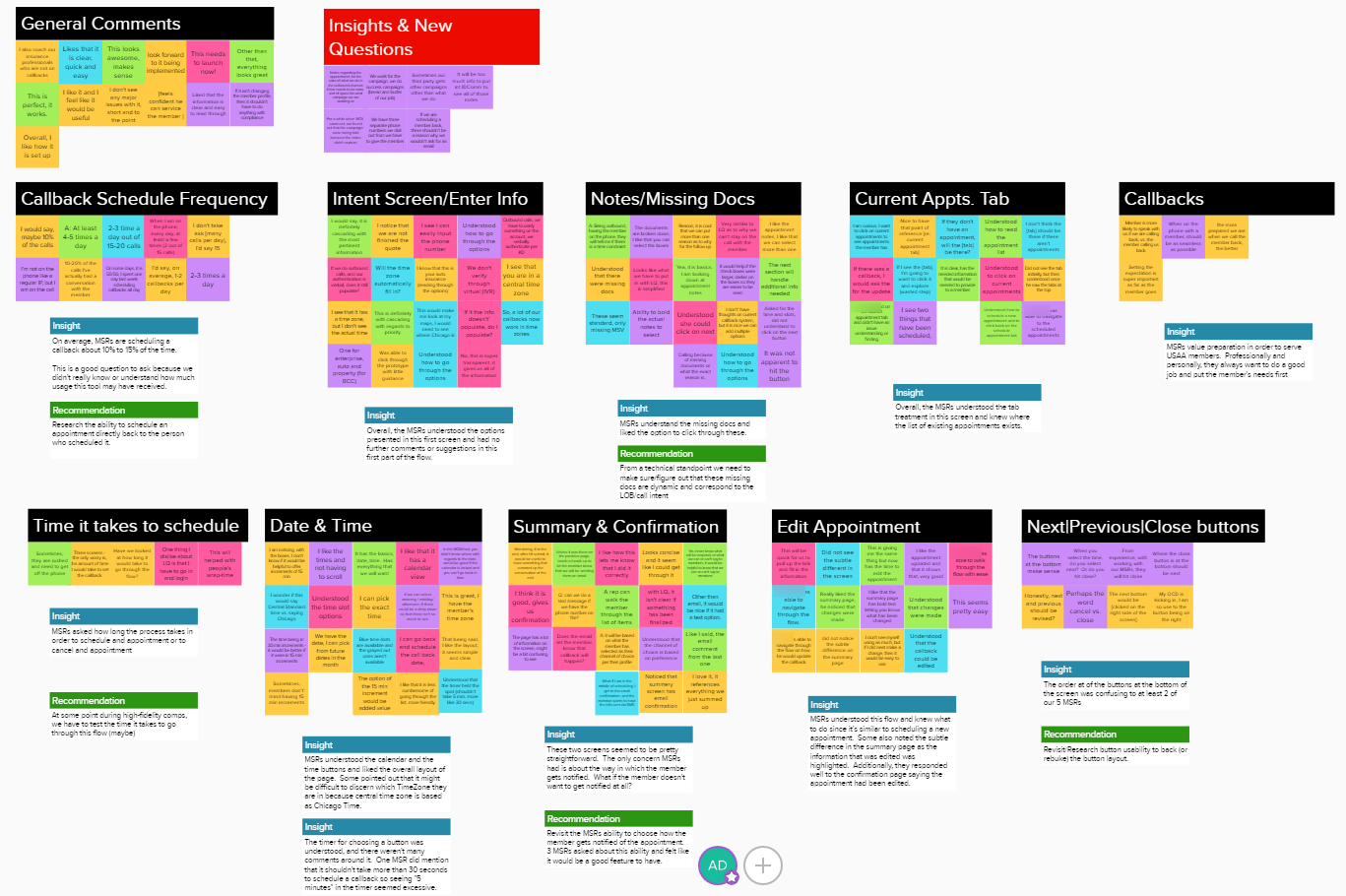
Five MSRs tested the V2 wireframes. They understood the new tab, and knew what to do when editing because it mirrors scheduling. The order of the Next, Previous and Close buttons confused at least two of the five, and three asked to choose how the member is told about the appointment.
After rounds of design and content reviews, feedback sessions and work with Product and Development, we delivered V2’s high-fidelity comps and prototype for production.
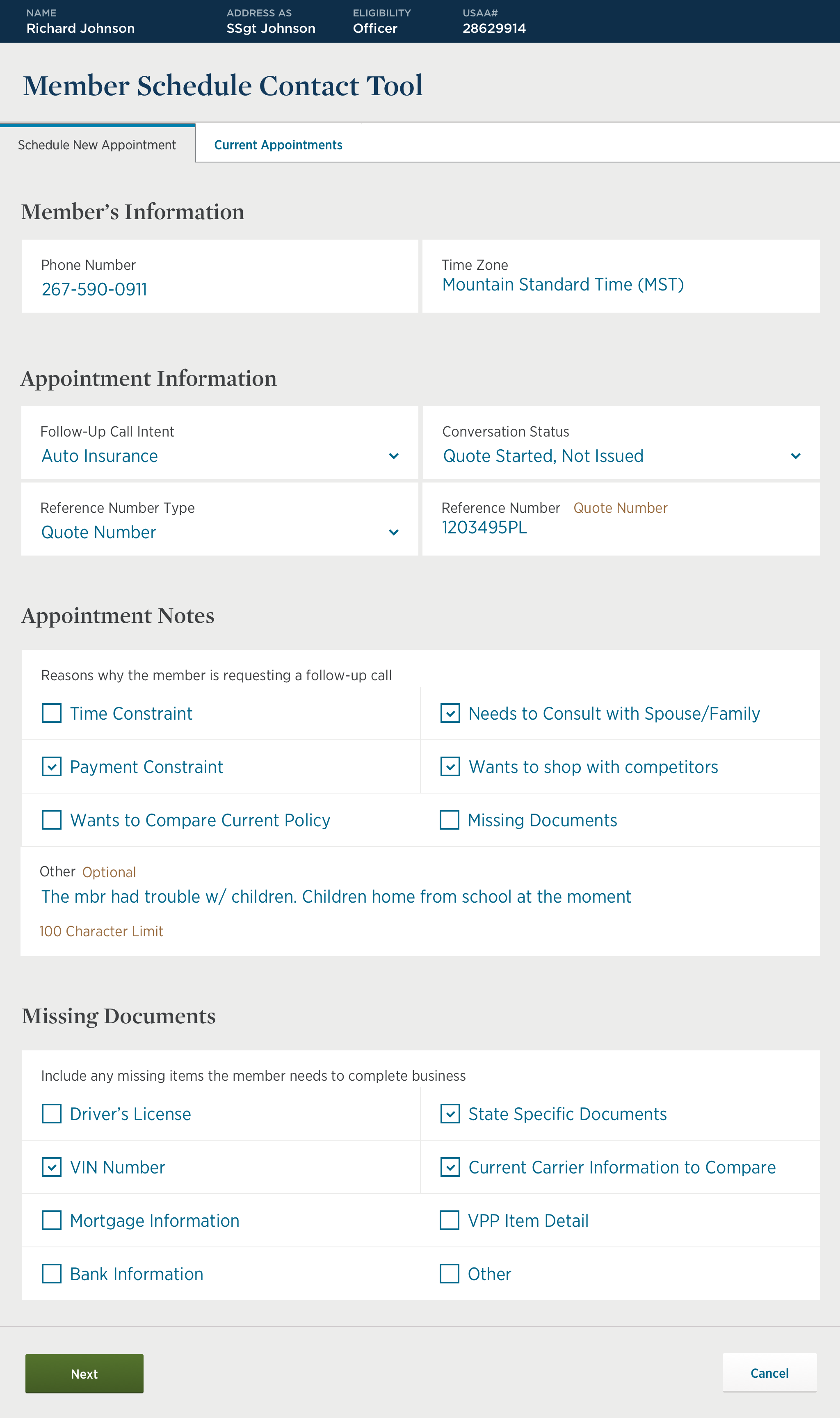
Schedule New Appointment: the member’s information, appointment information, appointment notes and missing documents
Showing image 01 / 06
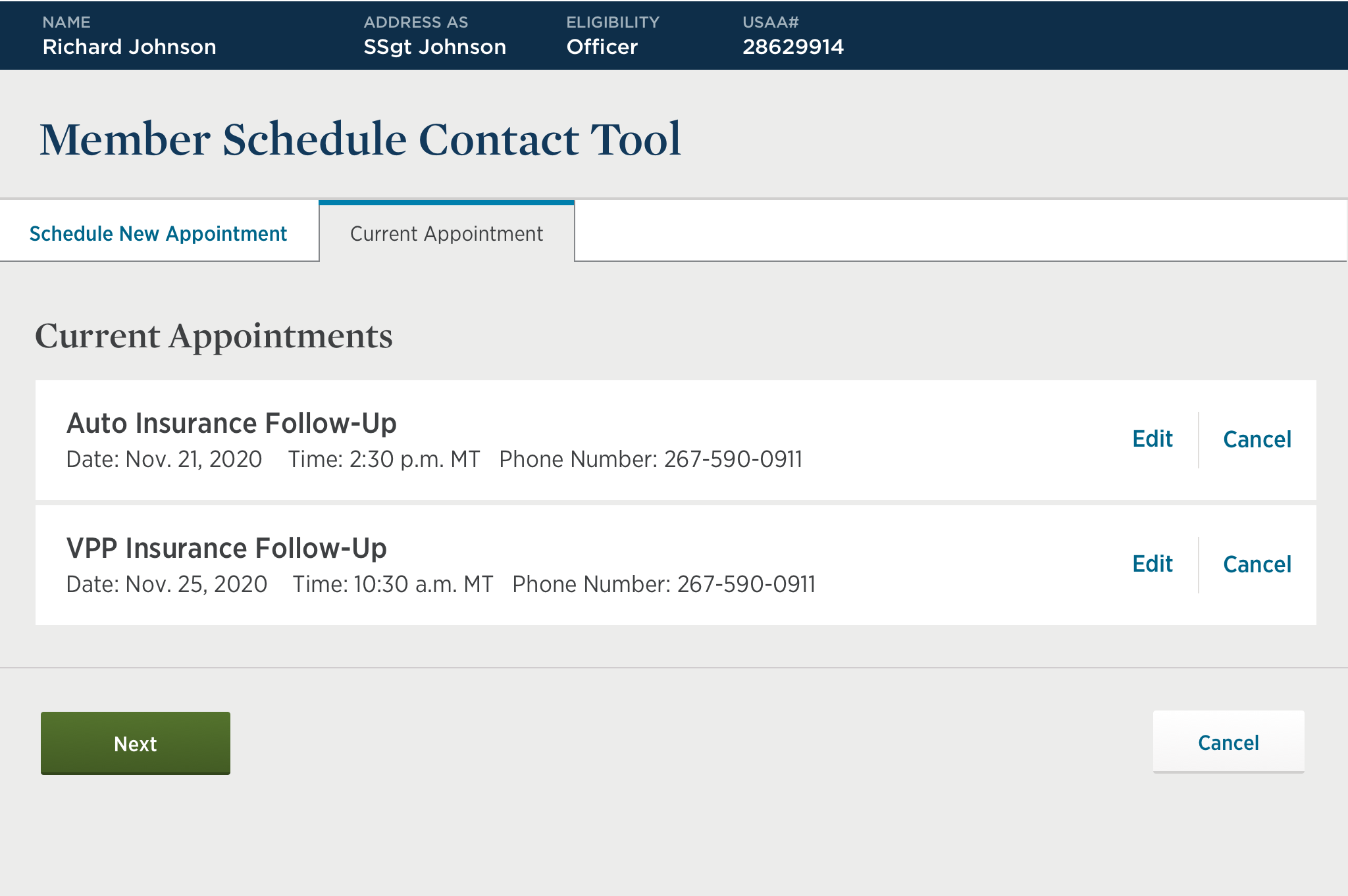
Current Appointments: each follow-up with Edit and Cancel
Showing image 01 / 07
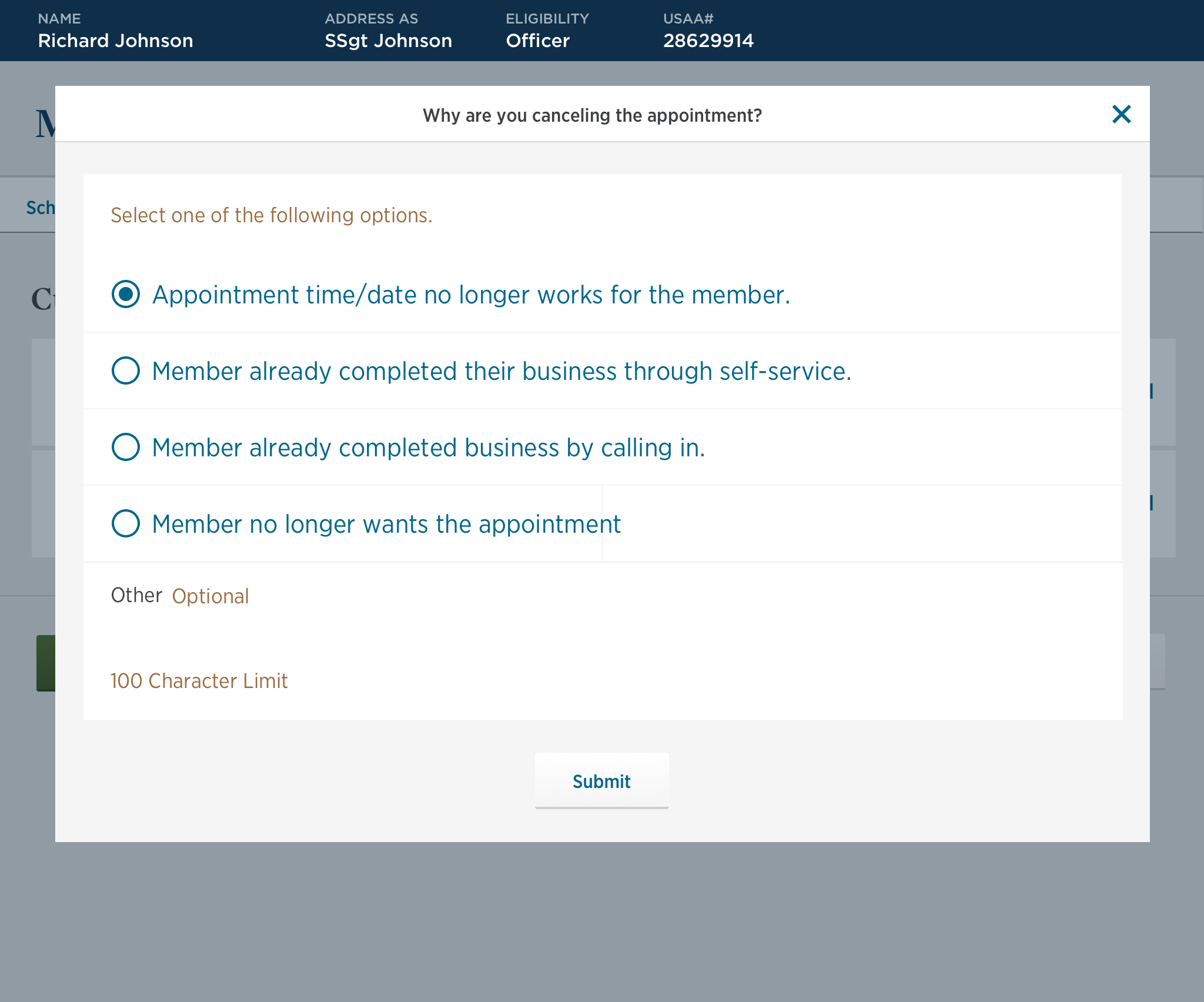
Canceling an appointment: why the member is canceling, from the time no longer working to finishing their business another way
Showing image 01 / 07